

Android File Transfer not working on your Mac again? You plug in your Android phone, wait, and get nothing: a blank window, a spinning wheel, or the dreaded “No Android device found.” You are not doing anything wrong, and you are not alone. Here is why it happens, seven fixes that actually work, and a simpler wireless way to get your photos across in about a minute. (Updated for macOS 26, September 2026.)
Why Android File Transfer keeps failing on Mac
Macs and Android phones do not speak the same language out of the box. Apple does not let Android talk to the Finder the way an iPhone does, so for years the only official option was Google’s free tool, Android File Transfer. The trouble is that Google has more or less left it to gather dust. It has not had a meaningful update in a very long time, and on modern macOS it fails more often than it works.
When it breaks, it is almost always one of these:
- The cable is charge-only. Many cables carry power but no data, so your Mac sees nothing.
- The phone is not in File Transfer mode. By default Android connects as “charging only” and hides its files.
- macOS is blocking the app. Security settings can quietly stop Android File Transfer from opening.
- The app itself has simply stopped working after a macOS update, which no amount of clicking will fix.
Let’s rule out the simple stuff first. If Android File Transfer not working is a regular event for you, the wireless method further down skips the cable problem entirely.
Is Android File Transfer discontinued?
In practice, yes. Google stopped meaningfully updating Android File Transfer years ago and has removed it from its official download page. The app was only ever a stopgap, a bare-bones bridge Google shipped because macOS has no built-in way to read an Android phone. With no one maintaining it, every new version of macOS is more likely to break it, which is exactly why searches for “Android File Transfer not working” keep climbing while the tool itself stands still.
The practical takeaway: if the fixes below do not bring it back, do not keep fighting a tool its own maker has abandoned. Switch to a method that does not depend on it at all, which is what the wireless option further down does.
7 fixes for Android File Transfer not working on Mac
- Swap the cable. Use the cable that came with your phone, or another one you know carries data. This single thing fixes a surprising number of cases.
- Set your phone to File Transfer mode. Plug in, then pull down the notification shade on your phone. Tap the “Charging this device via USB” notification and choose File Transfer or MTP. Your Mac should now see the phone.
- Unlock your phone first. A locked phone will not share files. Unlock it, and keep it awake while you copy.
- Try a different USB port. Skip hubs and dongles where you can, and plug straight into the Mac.
- Restart both devices. Old, but it clears the stuck USB connection more often than you would think.
- Check macOS security. Open System Settings, then Privacy & Security, and allow the app if macOS says it was blocked.
- Reinstall Android File Transfer. Delete it, download a fresh copy from Google, and try once more.
Worked through all seven and still staring at a blank window? Android File Transfer not working after every fix usually means the app has quietly failed on newer macOS, not something you did. This is the moment most people go looking for a cable-free alternative, so let’s do exactly that.
The easier way: send files over your own Wi-Fi
If what you actually want is your photos, videos and documents on your Mac, you do not need the cable, the modes, or the driver dance at all. As long as your phone and Mac are on the same Wi-Fi, you can send files straight across the network.
That is the whole idea behind DropBeam, a small Mac app we built for exactly this. It runs a private little server on your Mac, shows a QR code, and your phone uploads to it directly. There is nothing to install on the phone, no account, no cloud, and no size limit. Files arrive at full quality and land in your Downloads folder, ready to open.
How to move Android files to your Mac in 4 steps
1. Open DropBeam and click Start Receiving
Open DropBeam on your Mac and click Start Receiving. It turns on a private connection on your Wi-Fi and shows a QR code with a short access code, so only your phone can connect.
2. Scan the code with your phone
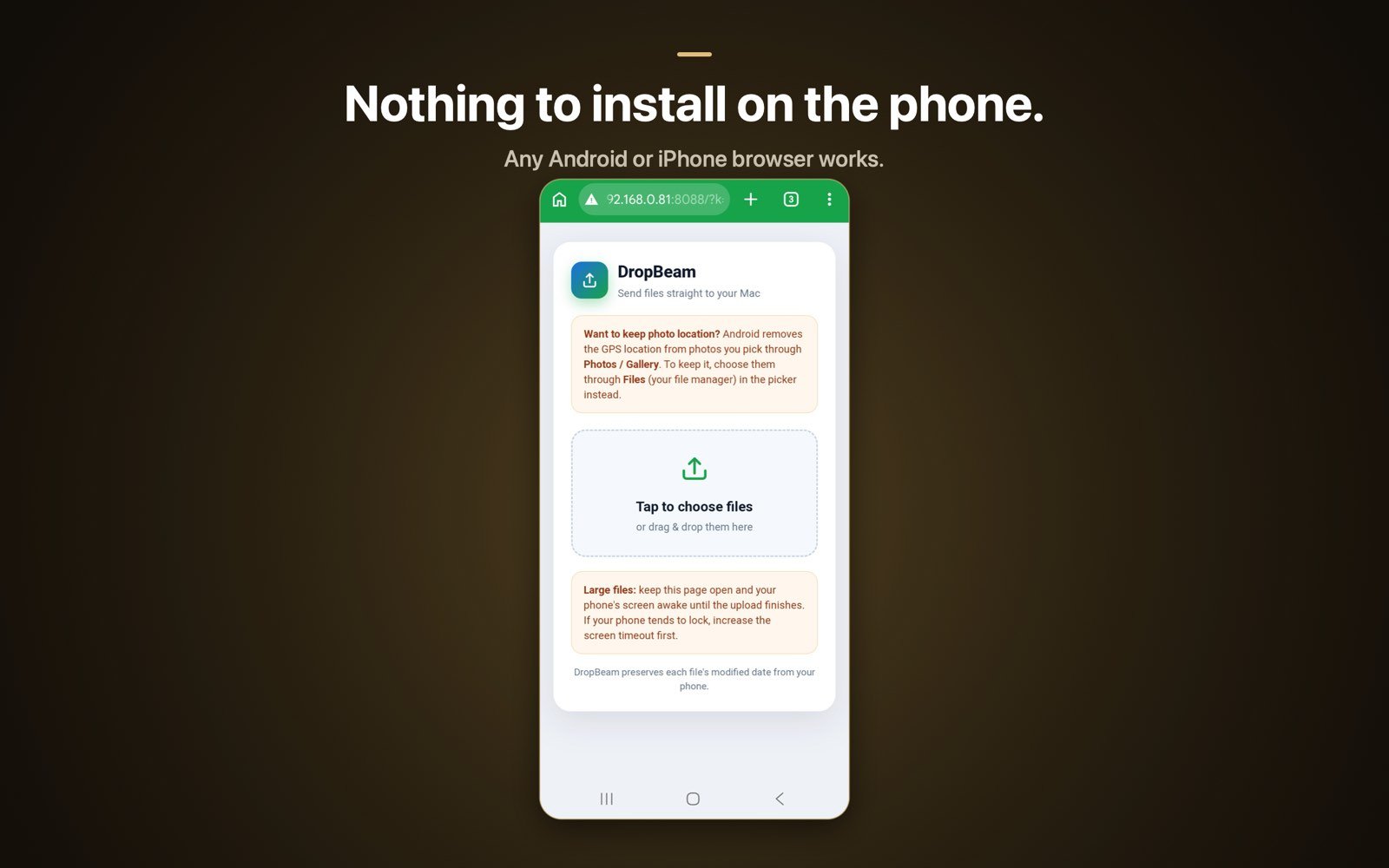
Point your Android camera (or Google Lens) at the QR code and tap the link that pops up. A DropBeam page opens right in your phone’s browser. Nothing to download, nothing to sign into.
3. Pick your files and send
On that page, tap Choose Files, select the photos, videos or documents you want, and send. You can pick a whole batch at once.
4. Find them on your Mac
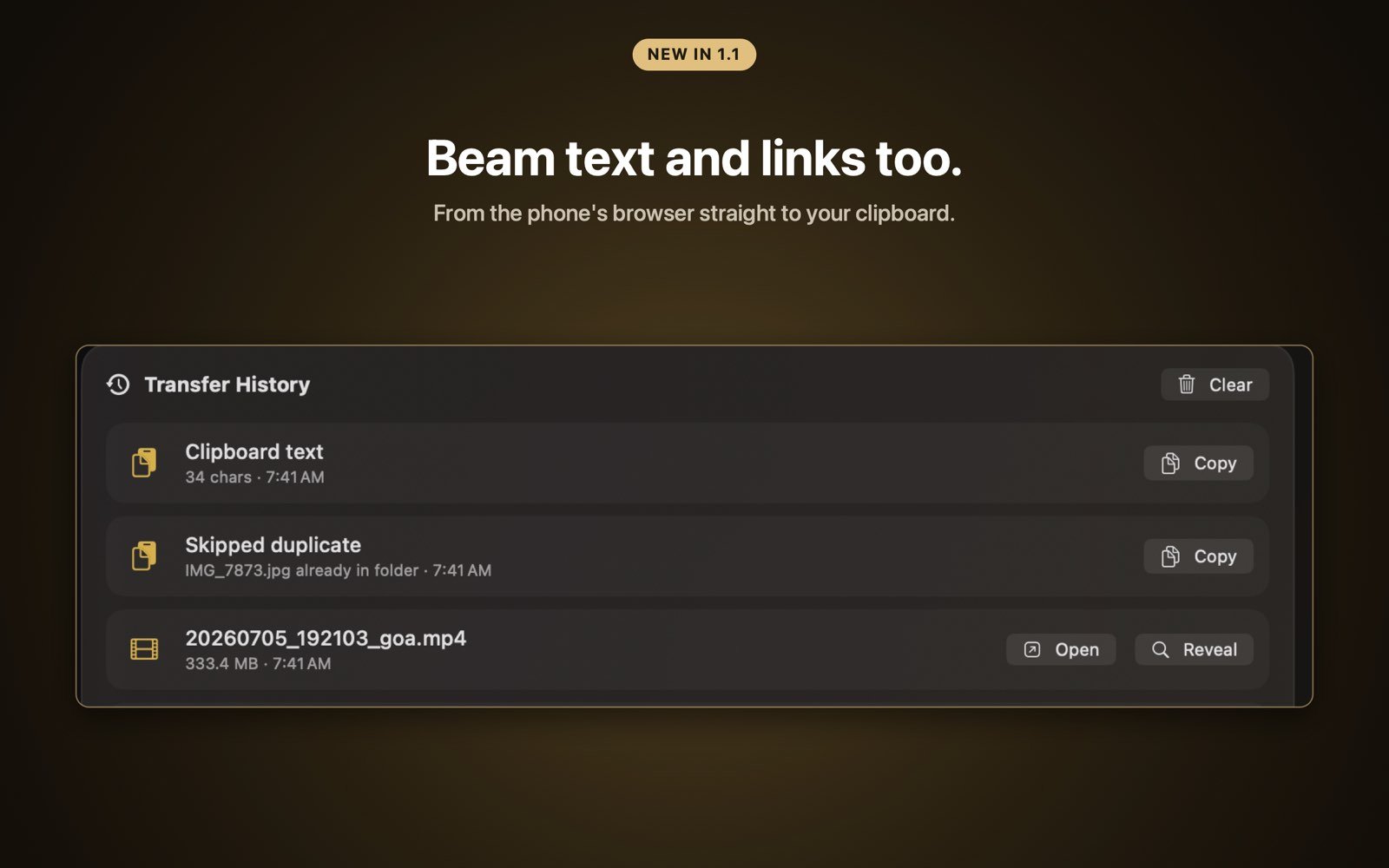
Watch the transfer fill to 100 percent on your Mac. Each file saves to your Downloads folder at full original quality, and you can click Open or Reveal to jump straight to it in Finder.
That’s it. No File Transfer mode, no wondering whether the cable carries data, and no more Android File Transfer not working when you are in a hurry. Just your files, on your Mac.

Skip the cable for good
DropBeam moves photos, videos and files from any phone to your Mac over Wi-Fi. Free with unlimited transfers, no phone app, no cloud. Pro is a one-time purchase, never a subscription.
Download on theMac App StoreOther ways to move Android files to a Mac
Wi-Fi is not the only route. Here is how the common options actually compare, so you can pick what fits.
- Google Drive or Dropbox. Upload from the phone, download on the Mac. It works, but large videos are slow, it eats into your cloud storage, and everything makes a round trip through someone else’s servers.
- Email or messaging yourself. Fine for one or two photos, but most services cap attachments around 25 MB and quietly recompress images, so you lose quality.
- Other cable tools (OpenMTP, MacDroid). These still rely on the USB cable and File Transfer mode, the very things that fail with Android File Transfer in the first place. OpenMTP is free; MacDroid puts the useful parts behind a subscription.
- Wireless, browser-based (DropBeam). No cable, no phone app, no cloud, and no size cap. You scan a QR code and files upload from the phone’s browser at full quality. It is the option with the least that can go wrong.
If you are mostly moving photos and videos and just want them on your Mac without a fight, the wireless route is the simplest, which is why it is the method we walk through above.
Frequently asked questions
Why is Android File Transfer not working on my Mac?
Usually one of a few things: the USB cable is charge-only and carries no data, the phone is not set to File Transfer (MTP) mode, macOS security is blocking the app, or Android File Transfer itself has quietly stopped working, which is common because Google no longer actively maintains it. Switching the phone to File Transfer mode with a known data cable fixes most cases. When it still fails, a wireless tool avoids the problem entirely.
Is Android File Transfer discontinued?
In practice, yes. Google no longer actively maintains it and has removed it from its official download page. It still runs, but it breaks often on current macOS and gets no fixes, so most people now switch to a wireless alternative instead.
What is the best replacement for Android File Transfer on Mac?
If you mainly move photos, videos and documents, a wireless tool like DropBeam is the simplest replacement. You scan a QR code with your phone and the files land in your Mac’s Downloads folder over Wi-Fi, with no cable and nothing to install on the phone.
Can I transfer files from Android to Mac without a cable?
Yes. As long as your phone and Mac are on the same Wi-Fi network, you can send files wirelessly. DropBeam runs a small local server on your Mac, shows a QR code, and your phone uploads straight to it over your own network. Nothing goes through the cloud.
Does this work on a MacBook Air, MacBook Pro, or iMac?
Yes. It is the same on every Mac, whether that is a MacBook Air, MacBook Pro, iMac, Mac mini or Mac Studio. As long as the Mac and your Android phone are on the same Wi-Fi, the wireless method works identically.
Can I also send files from my Mac back to my Android phone?
Yes. DropBeam’s one-time Pro option adds sending from the Mac to the phone, so it works in both directions over the same Wi-Fi connection.
Does moving files this way lose photo quality?
No. Files transfer at full original quality and size, with no recompression. A 4 GB video arrives as a 4 GB video.