

If you want to delete duplicate photos on Mac, you have three real options: hunt them by hand in Finder, let Apple Photos find the ones it can see, or run a dedicated scan that catches everything. The first two are free and built in, so we will cover them honestly first, including exactly where they stop working. Then we will show you the thorough way, and why it is safe enough to trust with twenty years of pictures.
Way 1: hunt duplicates by hand in Finder
The zero-download approach: open Finder, search for image files, sort by name or size, and eyeball the list for twins. A Smart Folder makes it slightly nicer. Press Cmd+Option+N, add a rule like Kind is Image, and Finder keeps a live list of every picture in the location you chose. Sort it by size and duplicates often sit next to each other, because identical files are identical sizes.
This genuinely works for a small, tidy folder. It falls apart at scale, and it falls apart fast. “IMG_4521.jpg” and “IMG_4521 (1).jpg” are easy to spot, but “IMG_4521.jpg” and “DSC_0087.jpg” can be the same photo with different names, and two different photos can share a size by coincidence. Nothing in Finder compares actual pixels. With a few thousand photos spread across Downloads, Desktop, old backups, and an external drive, manual hunting becomes an afternoon of squinting, and you will still miss most of them. Worse, tired eyes delete the wrong file. There is no comparison view, so you are trusting your memory of which copy was the good one.
Way 2: Apple Photos’ built-in Duplicates album
If your pictures live in the Photos app, macOS has a genuinely good free tool. Open Photos and look in the sidebar under Utilities > Duplicates. Photos periodically scans your library in the background, pairs up copies, and offers a Merge button that keeps the highest quality version and combines the metadata. Apple documents the feature on its Photos support page, and for what it does, it does it well.
Here is the honest part. The Duplicates album has three hard limits. First, it only sees photos inside your Photos library. The copies in Downloads, in that “Photos backup 2019” folder, or on your external drive are invisible to it, and for most people that is where the real mess lives. Second, it only catches exact or near-exact matches, so a resized export or a recompressed copy of the same shot usually sails through. Third, the album can take days to populate after a big import, because the scan runs on Apple’s schedule, not yours. So merge what it finds, absolutely. Just know that an empty Duplicates album does not mean a duplicate-free Mac.
Way 3: the fast way to delete duplicate photos on Mac
When the copies are scattered across folders and drives, the reliable way to delete duplicate photos on Mac is a scanner that compares the files themselves. Duplicate Media Cleaner is our Mac app for exactly this, and it checks photos and videos at three levels: exact matches that are byte-identical, look-alike matches where the same picture was saved in a different format or compression (a JPEG and its HEIC twin, for example), and similar matches for resized or recompressed copies, with a match percentage you control. Everything runs 100% on your device. Nothing is uploaded anywhere.
1. Pick the folders and scan
Open the app, choose the folders you want checked, and pick a match level. The free version scans one folder for exact duplicates; Pro adds multiple folders and the look-alike and similar levels. Point it at the messy places: Downloads, Desktop, old backup folders, the external drive.
2. Review groups and let Smart Select pick the keepers
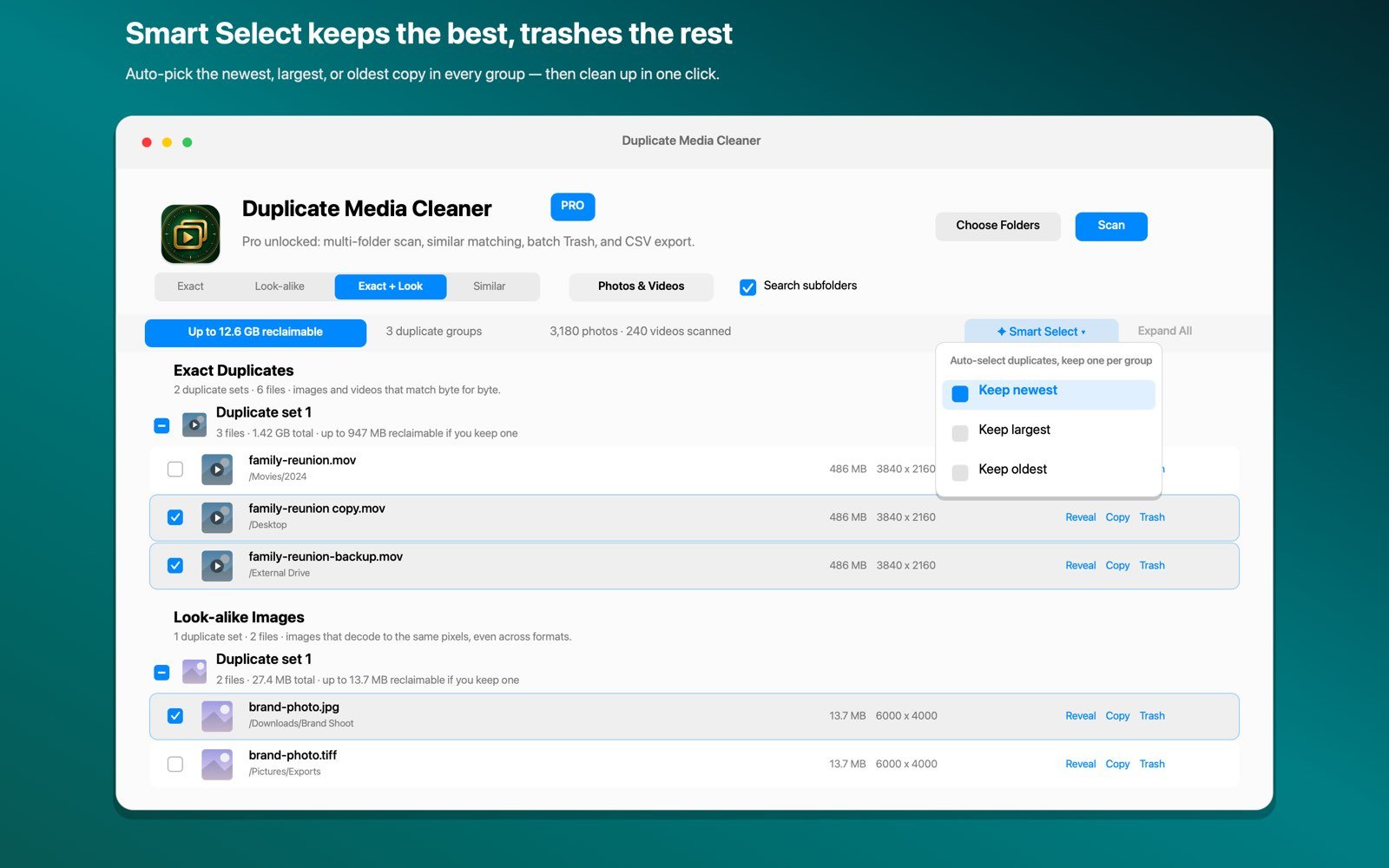
Matches appear side by side in groups, so you can see every copy before deciding anything. Smart Select then does the tedious part: it auto-picks which copy to keep in every group, newest, largest, or oldest, your choice, and marks the rest for removal. You can still override any pick by hand, and similar matches are always left for your review.
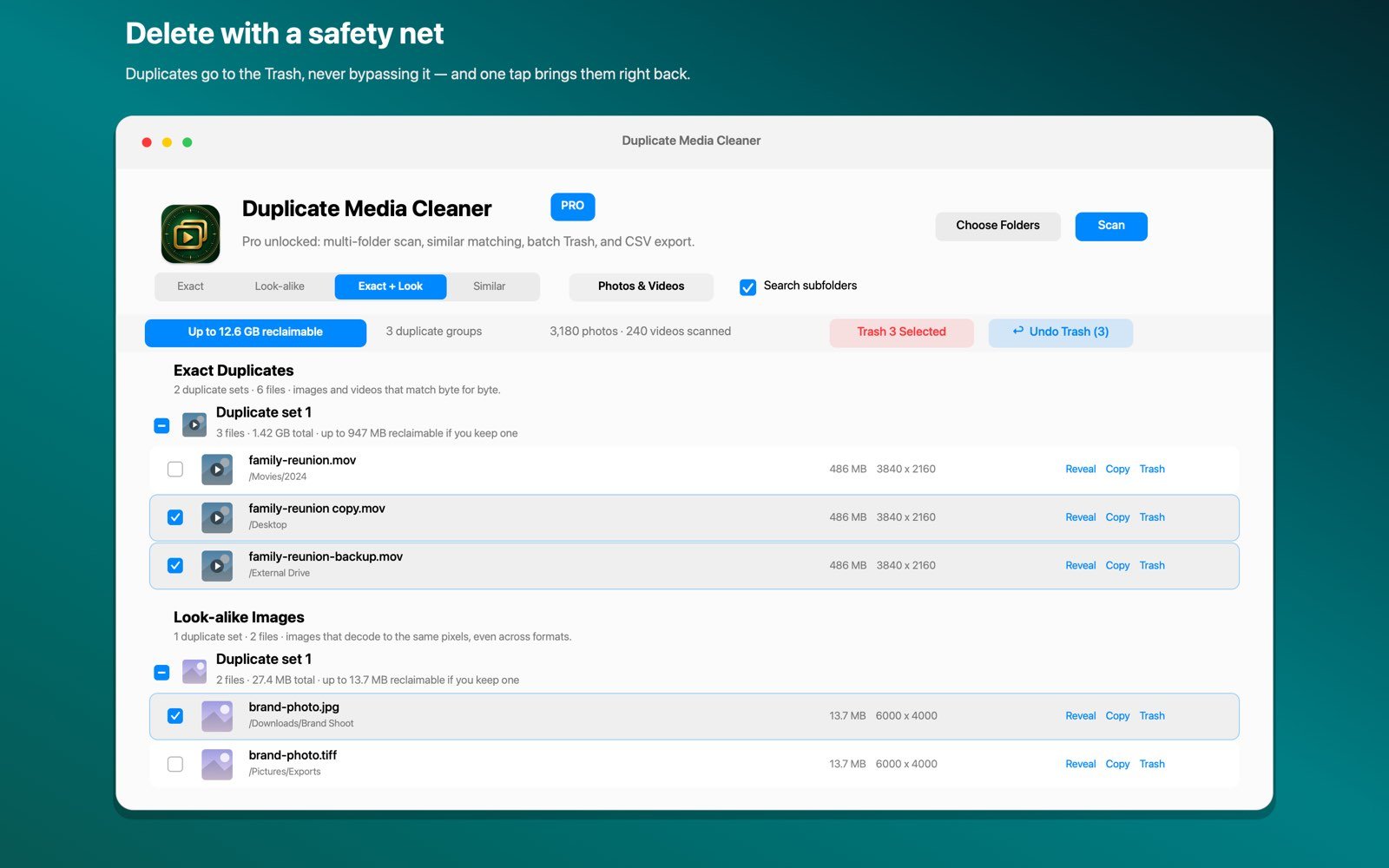
3. Move the copies to the Trash, with an escape hatch
One click sends the selected duplicates to the macOS Trash. Not to oblivion, to the Trash, where they sit until you empty it. And if your stomach drops the moment you click, one-tap Undo puts every file straight back where it was. That safety story is the whole design: review first, Trash only, undo always.

Reclaim the gigabytes your duplicates are sitting on
Duplicate Media Cleaner finds exact, look-alike, and similar copies of photos and videos, entirely on your Mac. Free to try, Pro is a one-time $9.99 purchase, no subscription.
Download on theMac App StoreWhich way should you pick?
- One small folder, a handful of pictures: Finder and a size sort will do. Free, fiddly, fine.
- Everything lives in the Photos app: start with Utilities > Duplicates and merge what it finds. It is free and built in, just remember it never looks outside the library and misses resized copies.
- Photos scattered across folders, drives, and years of backups: the fastest safe way to delete duplicate photos on Mac at that scale is a real scan. One pass with Duplicate Media Cleaner covers every folder you point it at, catches format twins the built-in tools cannot, and keeps everything recoverable in the Trash.
And if it is not just photos, your Documents folder probably has the same disease. We wrote a companion guide on how to delete duplicate files on Mac without deleting the wrong thing.
Frequently asked questions
Does Apple Photos find all my duplicate photos?
No. The Duplicates album in Apple Photos only checks photos inside your Photos library, and it only catches exact or near-exact copies. Photos sitting in folders, in Downloads, or on external drives are never scanned, so most Macs have duplicates it will never see.
Is it safe to remove duplicates with Duplicate Media Cleaner?
Yes. Removed files go to the macOS Trash, never straight to deletion, and one-tap Undo instantly restores everything you just moved. You can also review every group and reveal any file in Finder before anything moves.
Can it match a JPEG against its HEIC copy?
Yes. Look-alike matching decodes the pixels, so the same picture saved in a different format or compression, like a JPEG and its HEIC twin, is caught even though the files are not byte-identical.
How much does Duplicate Media Cleaner cost?
The app is free to download and scan one folder for exact duplicates. Pro is a one-time $9.99 purchase, not a subscription, and unlocks multi-folder scans, look-alike and similar matching, Smart Select, and CSV export.