

If you want to delete duplicate videos on Mac, start with the size math: one minute of 4K video from a modern phone can run to several hundred megabytes, so a handful of copies can quietly eat more space than thousands of photos. Here are three safe ways to find them, from the free tools already on your Mac to a full scan that catches re-encoded copies, plus how to choose which version to keep.
Where duplicate videos come from
Video copies multiply in ways photos rarely do, which is why they are worth hunting separately:
- AirDrop and phone transfers. Import the same clips twice from a phone and you have two full-size copies.
- Messaging apps. A clip sent through a chat app is usually re-encoded to a smaller file. Save it back to your Mac and you now own a compressed twin of the original.
- Edits and exports. Every trim exported from Photos or iMovie is a new file that sits next to the original.
- Backups. Old phone backups and “just in case” folders on external drives are full of clips you already have.
That second point matters most: re-encoded copies are not byte-identical to the original, so tools that compare names or sizes will never pair them.
Way 1: Finder, sorted by size
For one tidy folder, Finder is enough. Press Command-Option-N to open a Smart Folder, click the plus button, and set the rule to Kind is Movie. Switch to list view and sort by size. Identical files are identical sizes, so exact copies often sit right next to each other.
The limits arrive quickly. Finder cannot see inside your Photos library, it cannot tell that a 40 MB chat copy and a 600 MB original are the same clip, and with hundreds of videos across several folders you will spend an afternoon opening files to compare them. It is a fine first pass, not a complete one.
Way 2: the Photos Duplicates album
If your videos were imported into the Photos app, open it and go to Utilities > Duplicates in the sidebar. Photos groups matching items so you can merge them, and merged extras go to Recently Deleted for about 30 days. Apple documents the feature on its Photos support page, and we cover the details in our guide to duplicate photos in the Photos app.
It is free and safe, but it only checks items inside the Photos library. The large clips in Downloads, project folders and external drives, which is where most video storage actually goes, are never part of that scan.
Way 3: delete duplicate videos on Mac with a full scan
When clips are spread across folders and drives, the reliable way to delete duplicate videos on Mac is a scan that compares the files themselves. Duplicate Media Cleaner checks videos at two levels that matter here:
- Exact matches find byte-identical copies, the safest group to clear.
- Similar matches find the same clip re-encoded, resized or recompressed, using a match percentage you control. This is the level that pairs a chat-app copy with its full-quality original.
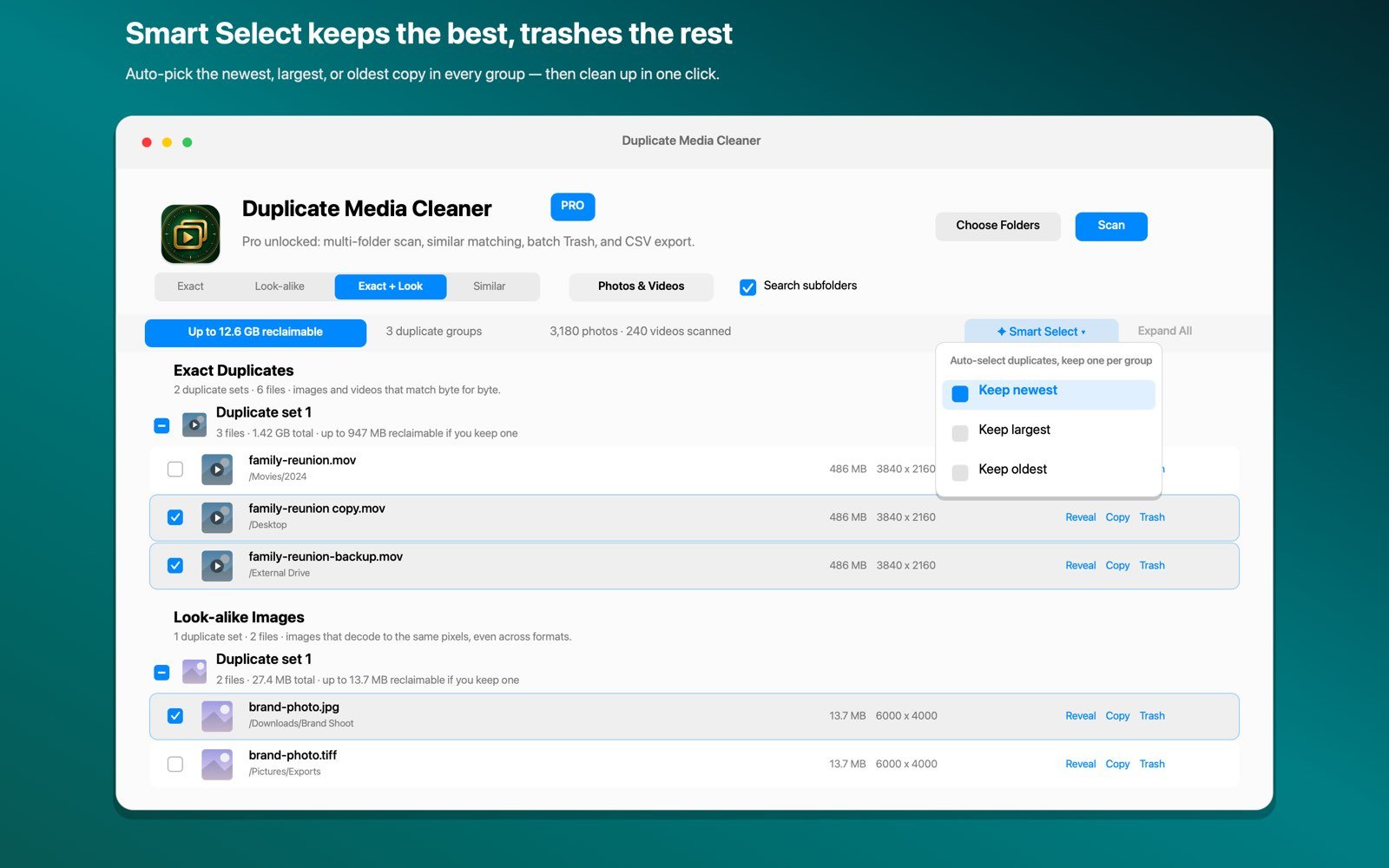
Point it at the places video piles up, Downloads, the Desktop, Movies and any external drive, and run the scan. Results appear in groups. Smart Select then picks the copy to keep in each group, newest, largest or oldest, and leaves similar groups for you to review so nothing borderline disappears automatically.
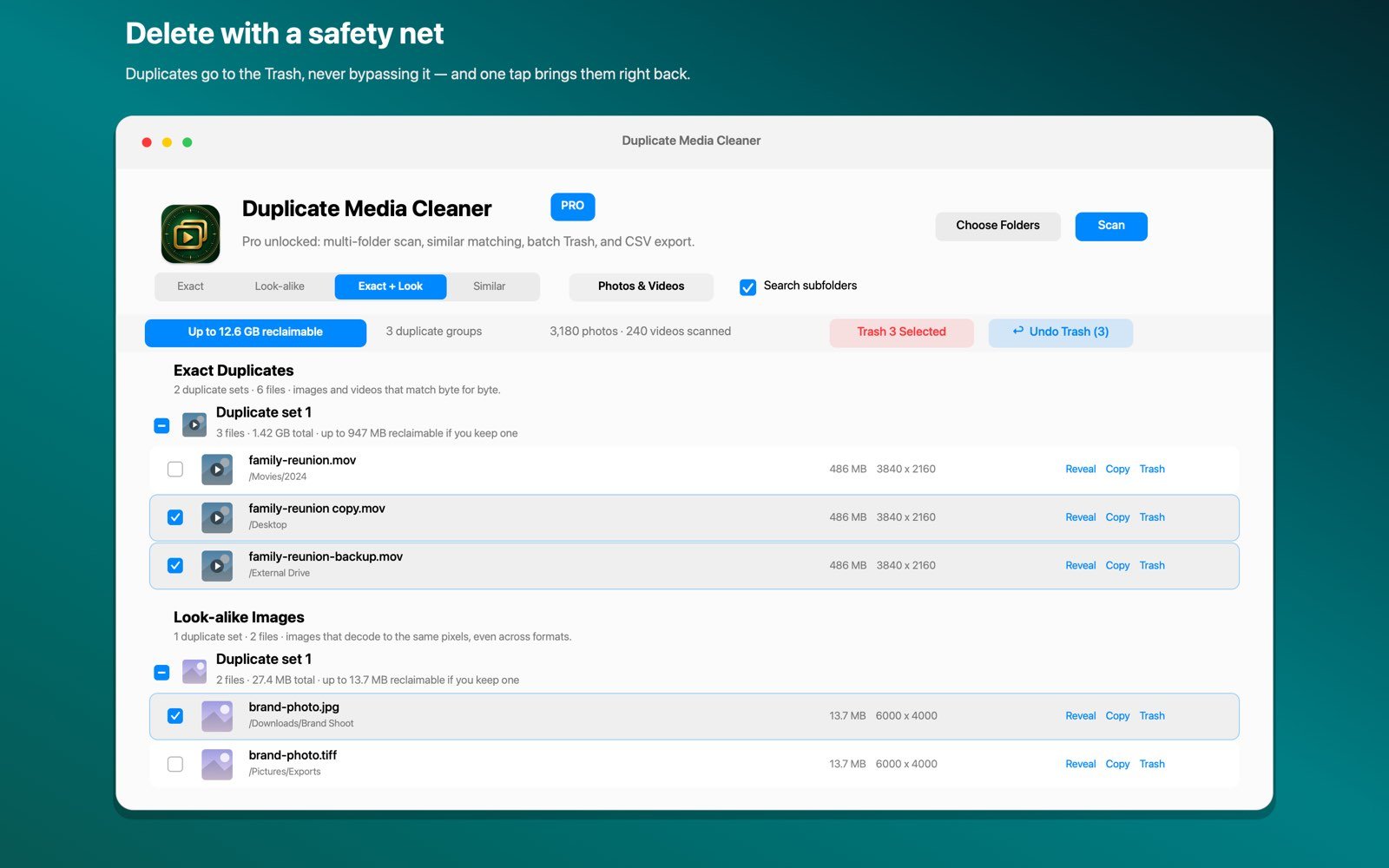
One click moves the selected copies to the macOS Trash, not straight to deletion, and one-tap Undo brings them back if you change your mind. Everything runs on your Mac; no video is uploaded anywhere.
Which copy should you keep?
Before you delete duplicate videos on Mac, decide what “best” means for you. A few rules that hold up:
- Keep the largest file in similar groups. With video, the bigger file is almost always the higher bitrate original; the small one is the compressed copy.
- Keep the oldest in exact groups if you care about the original creation date, since copies made later can carry newer file dates.
- Check resolution when unsure. Select a clip in Finder and press Command-I to see its dimensions; a 3840 x 2160 file beats a 1280 x 720 one.
- Watch the first few seconds. Press the Space bar in Finder for Quick Look. Two clips that look alike can be different takes of the same moment.
And empty the Trash only once you have had a day or two to notice anything missing. With video, that safety window is worth more than the space you gain an hour sooner.

Get gigabytes back from duplicate videos
Duplicate Media Cleaner finds exact and re-encoded copies of videos and photos across any folder or drive, entirely on your Mac. Free to try, Pro is a one-time $9.99 purchase, no subscription.
Download on theMac App StoreFrequently asked questions
How do I delete duplicate videos on Mac for free?
Use a Finder Smart Folder filtered to movies and sorted by size to spot exact copies in one folder, and the Photos Duplicates album for videos inside your Photos library. Neither catches re-encoded copies or scans every folder at once.
Can I find duplicate videos that were saved at different sizes?
Yes, with similar matching. It compares the clips themselves, so the same video re-encoded, resized or recompressed is grouped with the original even though the files are not identical.
Is it safe to delete duplicate videos on Mac this way?
Yes. Removed files go to the macOS Trash rather than being erased, and one-tap Undo restores them. You review every group before anything moves.
Does it scan external drives?
Yes. You can point the scan at any folder or drive, including external ones, which is where large video files tend to pile up.