

Duplicate photos in the Photos app pile up quietly: an import you ran twice, a shared album you saved, a burst you never sorted. The good news is that macOS has a free, built-in way to find and merge them, and it takes about four steps. Here is exactly how to use it on your Mac, what merging really keeps, why the Duplicates album is sometimes empty, and how to catch the copies the Photos app never sees.
Where to find duplicate photos in the Photos app
Since macOS Ventura, the Photos app scans your library in the background and collects matching pictures into a dedicated album. Open Photos, look at the sidebar, and scroll down to Utilities. You will see an entry called Duplicates, sitting next to Hidden, Recently Deleted and Imports.
Everything in that album is grouped in sets. Each set shows the copies side by side with their file size and date, so you can see at a glance which version is larger or newer. Apple explains the feature on its official Photos support page, and for pictures that already live inside your library, it is genuinely good.
4 easy steps to merge duplicate photos in the Photos app
Step 1: Open the Duplicates album
In the Photos sidebar, click Utilities > Duplicates. If you do not see it, jump to the section on why the album can be missing, because there are two common reasons and both are easy to fix.
Step 2: Review each set before you merge
Scroll through the sets and look for anything that is not a true copy. The detection is careful, but a cropped edit and its original, or two genuinely different shots taken a second apart, deserve a second look. Double-click a photo to open it full size if you are unsure.
Step 3: Merge one set, or all of them at once
Click Merge next to a single set to combine it. To clear everything in one pass, press Command-A to select all, then click Merge Items at the top of the window and confirm. On a large library this is the fastest way to remove duplicate photos in the Photos app without clicking through hundreds of pairs.
Step 4: Empty Recently Deleted, only when you are sure
The extra copies are not destroyed straight away. They move to Recently Deleted, where they stay for about 30 days. If you need the space back today, open Recently Deleted and choose Delete All. If you are not in a hurry, leave them there as a safety net and let macOS clear them on schedule.
One thing to know if you use iCloud Photos: merges sync, so the same sets are merged on your iPhone and iPad too. That is usually what you want, but it is worth knowing before you merge a few thousand items at once.
What merging actually keeps
Merging is smarter than deleting. For each set, the Photos app keeps the highest quality version and carries over the useful details from the others, such as captions, keywords and favorites, so you do not lose the work you put into organizing. Albums that contained any copy will contain the kept version after the merge.
That is the main reason to prefer Merge over selecting a copy and pressing Delete. A manual delete can quietly drop a photo out of an album or lose a caption you added years ago; a merge preserves them.
Why the Duplicates album is empty or missing
- Your Mac is on an older macOS. The Duplicates album arrived with macOS Ventura. On Monterey or earlier it simply does not exist, so check Apple menu > About This Mac.
- The library is still being analyzed. Photos does this work in the background, mostly when your Mac is idle and plugged in. After a big import, it can take a day or more for sets to appear. Leave Photos open overnight and check again.
- Your copies are not close enough to count. The album looks for exact and near-exact matches. A heavily resized export or a screenshot of a photo usually will not be paired with the original.
- Everything is genuinely clean. If the album says there are no duplicates and the library is fully analyzed, your library itself is in good shape. The copies may simply be living somewhere else, which brings us to the bigger problem.
What the Photos app can’t see
Here is the limit that catches most people out: the Duplicates album only ever checks photos inside your Photos library. On a typical Mac, a large share of the copies live outside it entirely:
- Pictures saved to Downloads or the Desktop from email, messages and the web
- Old backup folders from a previous Mac or phone
- Folders on an external drive you plugged in to offload space
- The same shot saved as both JPEG and HEIC, or recompressed by a messaging app
None of those are scanned, so an empty Duplicates album can sit right next to gigabytes of duplicate photos in folders. To find those, you need a scan that compares the files themselves across any folder or drive you choose.
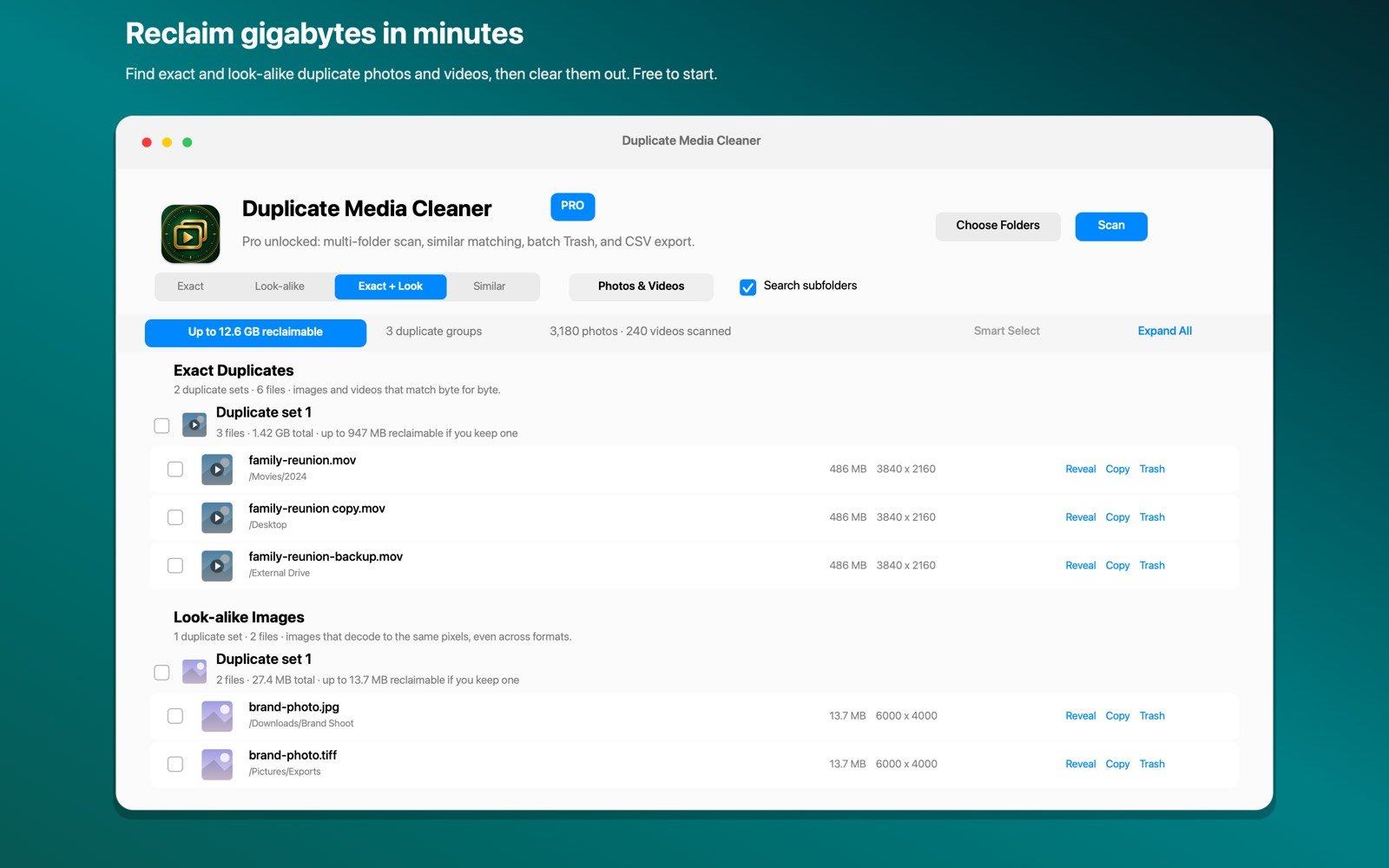
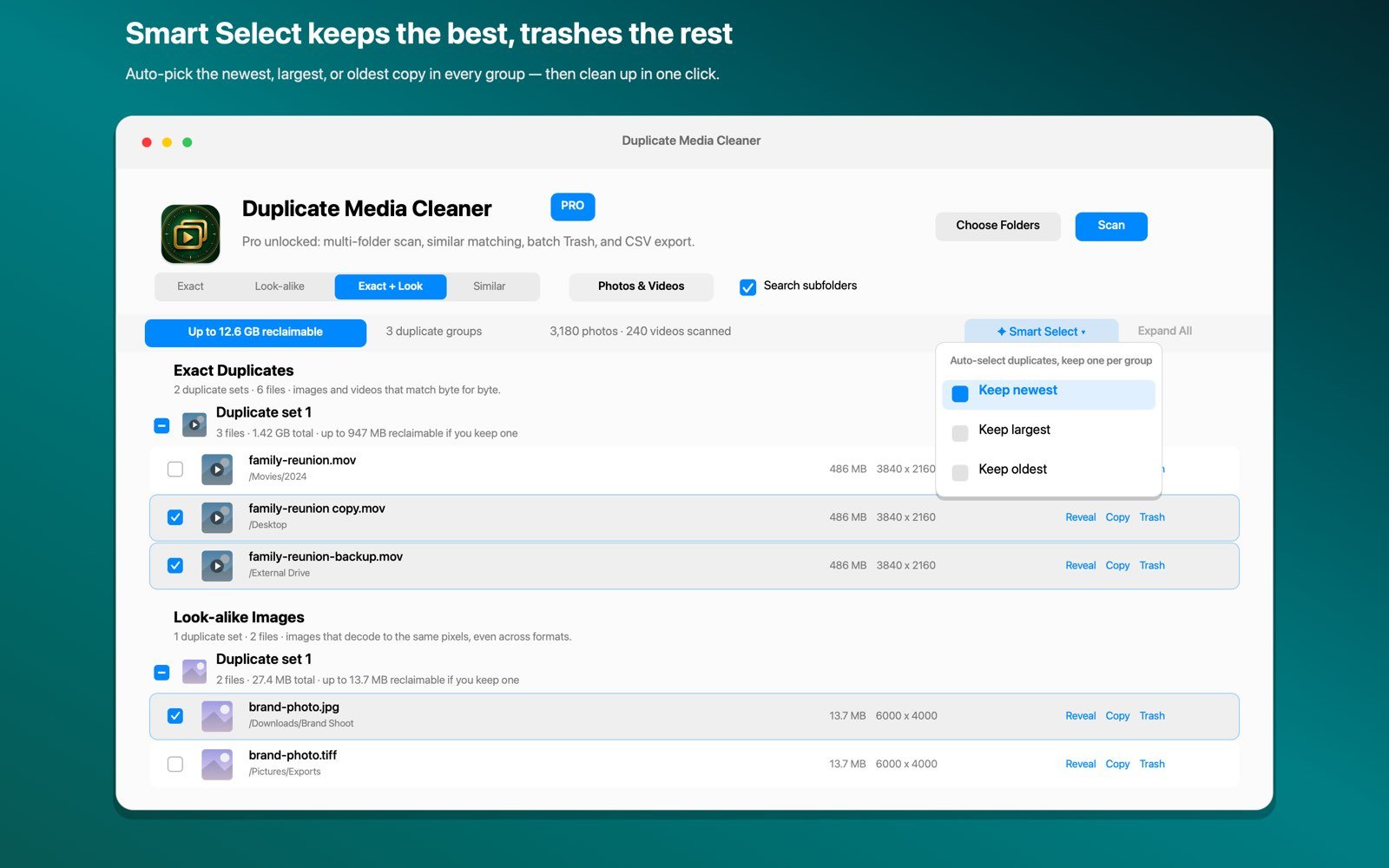
That is what Duplicate Media Cleaner does. It checks photos and videos at three levels: exact byte-identical copies, look-alike images where the same picture was saved in a different format or compression, and similar matches for resized or recompressed versions, with a match percentage you set. Smart Select picks the copy to keep in every group, newest, largest or oldest, and everything removed goes to the macOS Trash with a one-tap Undo. It all runs on your Mac; nothing is uploaded.
The sensible order is simple: merge duplicate photos in the Photos app first, because it is free and keeps your albums intact, then run a folder scan for everything outside the library. For a side-by-side look at every method, see our full guide on how to delete duplicate photos on Mac.

Find the copies the Photos app never sees
Duplicate Media Cleaner scans any folder or drive on your Mac for exact, look-alike and similar photos and videos. Free to try, Pro is a one-time $9.99 purchase, no subscription.
Download on theMac App StoreFrequently asked questions
Where are duplicate photos in the Photos app on Mac?
Open Photos and look in the sidebar under Utilities for the Duplicates album. It requires macOS Ventura or later. If it is missing on a newer Mac, the library is probably still being analyzed in the background.
Does merging duplicate photos in the Photos app delete anything?
Merging keeps the highest quality version and combines details like captions, keywords and favorites. The extra copies move to Recently Deleted, where they stay for about 30 days before they are removed for good.
Can I merge all duplicates at once?
Yes. In the Duplicates album press Command-A to select every set, then click Merge Items and confirm. Review the sets first, since a cropped edit and its original can occasionally be grouped together.
Why does the Photos app miss some duplicate photos?
It only scans photos inside your Photos library and mostly catches exact or near-exact matches. Duplicates in Downloads, backup folders and external drives, plus heavily resized versions, are never checked, which is why a folder scan finds far more.