

You want to rename photos by date taken because IMG_4521.HEIC tells you absolutely nothing. Not when it was shot, not where, not whether it is the good one from the burst of nine. A folder full of names like 20260606_143201.heic, on the other hand, sorts itself, searches itself, and explains itself. The catch is that the Mac’s built-in tools cannot quite get you there. Here is what each option can and cannot do, and the batch way we recommend.
Why the file’s “created date” lies to you
Before renaming anything, it helps to know which date is real. Every photo file carries two very different dates. The file system’s creation date is whatever the operating system stamped when the file landed on that disk, and it changes every time you copy the photo to a new drive, restore a backup, or download it from the cloud. Copy your 2019 vacation to a new SSD today and, as far as Finder is concerned, every one of those photos was “created” this afternoon.
The date you actually care about lives inside the file: the EXIF capture date the camera wrote at the moment you pressed the shutter, and the recorded date inside a video’s metadata. That inner date survives every copy. So any tool that promises to rename photos by date taken has to read EXIF, not the file system, and that single requirement is what separates the options below.
Option 1: Finder batch rename, good at text, blind to dates
Select some files in Finder, right-click, choose Rename, and you get a genuinely handy little tool. It can find and replace text, add a word before or after, or apply a base name with a counter, and Apple documents it well on its Finder rename support page. If you want “Beach trip 1” through “Beach trip 200”, Finder is your friend.
What it cannot do is look inside a photo. There is no option to insert the date taken, because Finder’s renamer never reads EXIF. The closest it offers is a counter, which tells you nothing about when a photo was shot. For date-based names, Finder is simply not in the game.
Option 2: exiftool, Automator, and Shortcuts, powerful but unforgiving
If you are comfortable in Terminal, exiftool can absolutely rename photos by date taken, and it is superb at it. A one-line command reads the EXIF date and rewrites every file name in a folder. Automator and Shortcuts can be coaxed into similar workflows with some scripting glue.
The honest trade-off is that these tools are fiddly and show you nothing before they act. There is no preview, so a typo in a date format string quietly mangles thousands of file names in one pass, and there is no undo button afterwards. Videos add another wrinkle, because their dates hide in different metadata fields than photos. Plenty of people use exiftool happily every day. Plenty of others have learned about backups the hard way.
Option 3: rename photos by date taken with Stamped
Stamped is our Mac app built for exactly this job, so here is precisely what it does. It reads the true capture date, EXIF for photos and recorded metadata for videos, and renames everything to clean yyyymmdd_hhmmss names. Before a single file changes, you see a live preview of every new name, so what you approve is exactly what you get. Collision-safe numbering handles burst shots taken in the same second, and you can add optional labels, sort into subfolders, or filter to media files only.
One honesty note we are proud of: video times stay exactly as recorded, with no silent time zone conversion, so the name on the file matches the clock on the wall when you pressed record. And if you change your mind after a run, Undo Last Transfer puts everything back with one click.
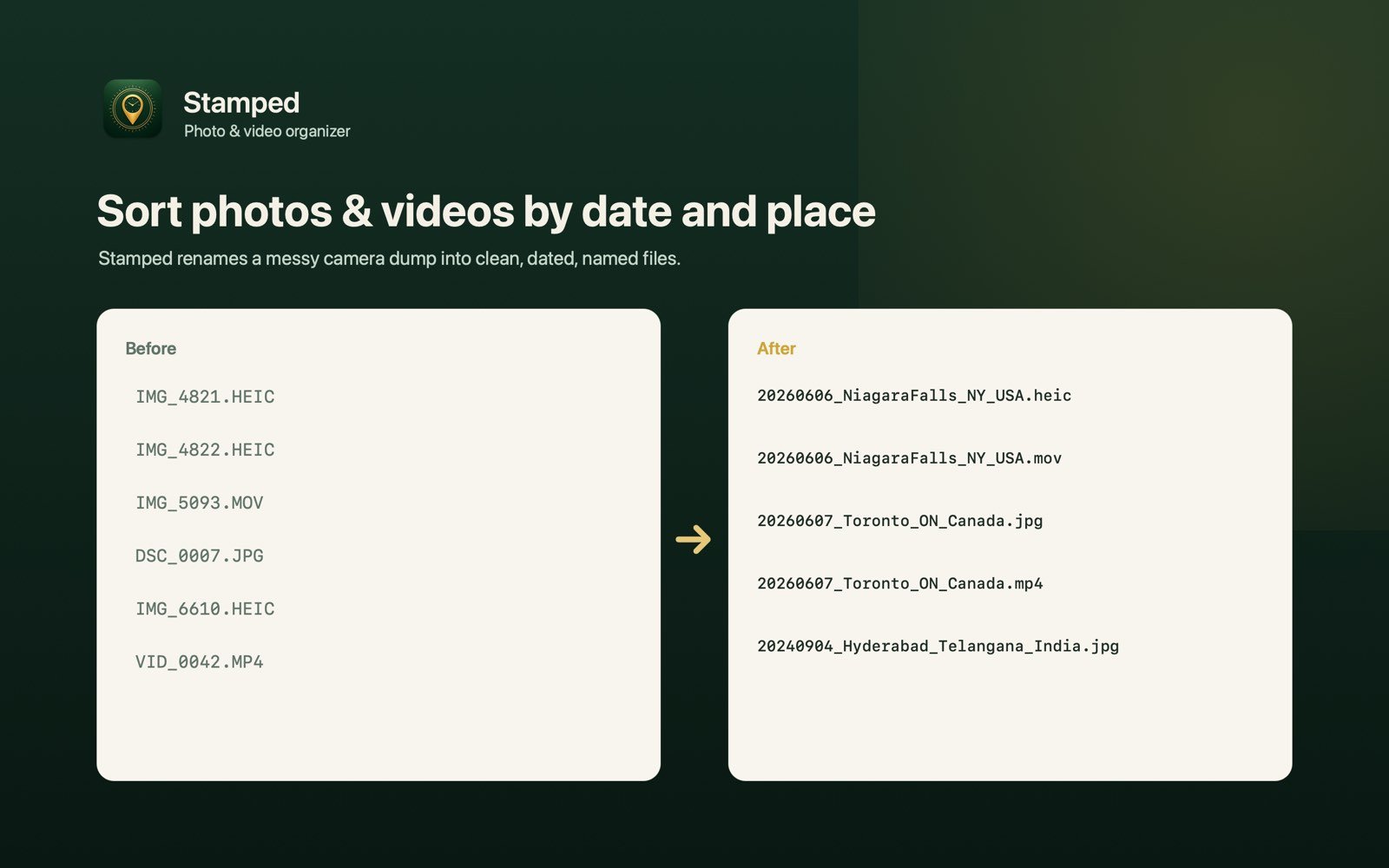
The 3-step batch rename
1. Point Stamped at your photo folder
Open Stamped, choose the folder holding your photos and videos, and pick where the renamed files should go. It happily takes a whole camera dump, a memory card, or years of accumulated downloads in one pass.
2. Check the live preview
Stamped reads each file’s real capture date and lists every proposed name next to the old one. Skim the list, adjust labels or subfolder options if you want them, and nothing changes until you say so.
3. Run it, and undo if you like
Click to commit. Files come out named by the moment they were shot, with numbered suffixes for same-second bursts. If the result is not what you wanted, Undo Last Transfer reverses the whole run.
If you go Pro, a one-time purchase, Stamped adds Smart Events: it detects gaps in time and place across your photos and auto-groups them into named trip folders like 20260606_NiagaraFalls_NY_USA, with place names looked up on-device. Dated folder trees and event-folder options round it out. Renamed and grouped, a decade of photos starts to read like a diary.

One tidy-up tip before you rename: burst shots and re-downloads mean most libraries carry duplicates, and renaming them just gives you two dated copies of the same moment. Our guide to deleting duplicate photos on a Mac is worth a pass first.

Every photo named by the moment it was taken
Free to try. Stamped Pro is a one-time purchase, no subscription.
Download on theMac App StoreFrequently asked questions
Can Finder rename photos by date taken?
No. Finder’s batch rename can replace text, add text, or apply a name with a counter, but it cannot read the EXIF date inside a photo. To put the real capture date into the file name you need a tool that reads EXIF, such as exiftool or Stamped.
What happens if two photos were taken in the same second?
Burst shots often share a timestamp. Stamped uses collision-safe numbering, so same-second photos get a numbered suffix instead of overwriting each other, and no file is ever lost to a name clash.
Does renaming change the photo itself or reduce quality?
No. Renaming only changes the file name. The image data, resolution, and EXIF metadata inside the file stay exactly as they were, so the original capture date remains stored in the photo even after the name changes.
What if I rename thousands of files and regret it?
With scripts, you restore from backup and hope. With Stamped, you click Undo Last Transfer and everything goes back to its previous name and place in one click, which is exactly why we built it in.