

Everyone who sets out to delete duplicate files on Mac has the same quiet fear: what if I trash the wrong copy? A duplicate photo is annoying; a deleted contract, invoice, or tax PDF is a real problem. So this guide is built around that fear. We will cover the free ways first, Finder search and the Terminal, and be honest about where each one can bite you. Then the careful way: byte-identical matching, review before anything moves, and a Trash you can always undo.
Way 1: Finder search by name and size
The obvious first way to delete duplicate files on Mac is free and already built in. Open a Finder window, press Cmd+F, and add search criteria like name, kind, or file size. Apple’s guide to narrowing search results shows every filter available, and you can save the search as a Smart Folder that updates itself. Search for “copy” or “(1)” in file names and you will catch the duplicates macOS itself created.
Now the trap, and it is exactly the trap you are afraid of: same name is not same file. “Lease-final.pdf” in Downloads and “Lease-final.pdf” in Documents look like twins in a search result, but one might be the signed version and one the draft. Delete by name and you are gambling. Size is no safer; two different files can share a size, and two identical files can carry completely different names. Finder shows you labels, not contents, so a name-and-size hunt is precisely how people delete the wrong copy. It is fine for spotting obvious “(1)” clutter in one folder. It is not a method you should trust with documents that matter.
Way 2: Terminal and fdupes, for the brave
Technical users have a sharper free tool. Command-line utilities like fdupes (installed via Homebrew) compare file contents with checksums, so their matches are genuinely reliable, and a single command can sweep a whole folder tree. If you live in the Terminal already, it works.
For everyone else, we have to be honest: this is the riskiest route on the page. fdupes with the wrong flag deletes files immediately and permanently, with no Trash, no undo, and no preview thumbnails. One mistyped path and the command runs somewhere you did not intend. The tool is not dangerous because the matching is bad; the matching is excellent. It is dangerous because the safety net is you, at a command prompt, with no second chances. If reading that made you slightly nervous, that instinct is correct, and the next section is for you.
Way 3: the safe way to delete duplicate files on Mac
The careful middle path is content-based matching wrapped in safeguards, and that is exactly what we built Duplicate Document Cleaner to be. It compares your documents and PDFs byte-for-byte, so a match is a certainty, never a fuzzy guess that could pair a draft with a final version. And because deleting the wrong thing is the whole fear, nothing is automatic: you see every group, you can check every file in Finder first, and removal only ever means the Trash. Here is the safe way to delete duplicate files on Mac in three steps.
1. Choose the folders and scan
Open the app and pick the folders to check: Documents, Downloads, an old backup folder, an external drive. The free version scans one folder; Pro adds as many as you like. The scan runs entirely on your Mac. No accounts, no cloud, and your documents never leave your computer.
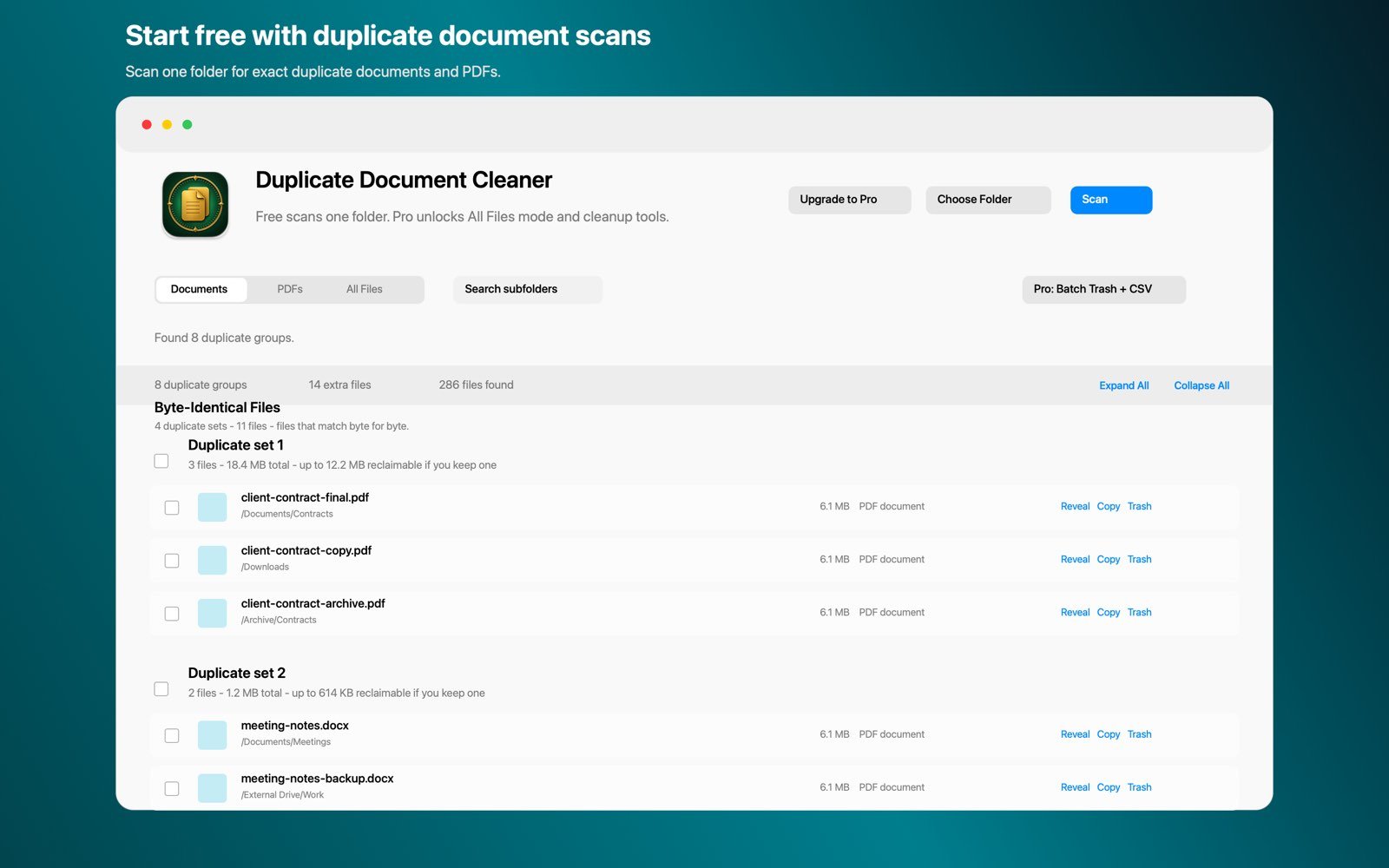
2. Review each group before anything moves
Matches arrive in groups with file type and modification details, so you can see at a glance which copy lives where. Not sure about one? Reveal it in Finder or copy its path and open it yourself. Because matching is byte-identical, every file in a group has exactly the same contents, which means there is no wrong copy to keep. Whichever one you leave behind is the complete document.
3. Send the copies to the Trash, not into the void
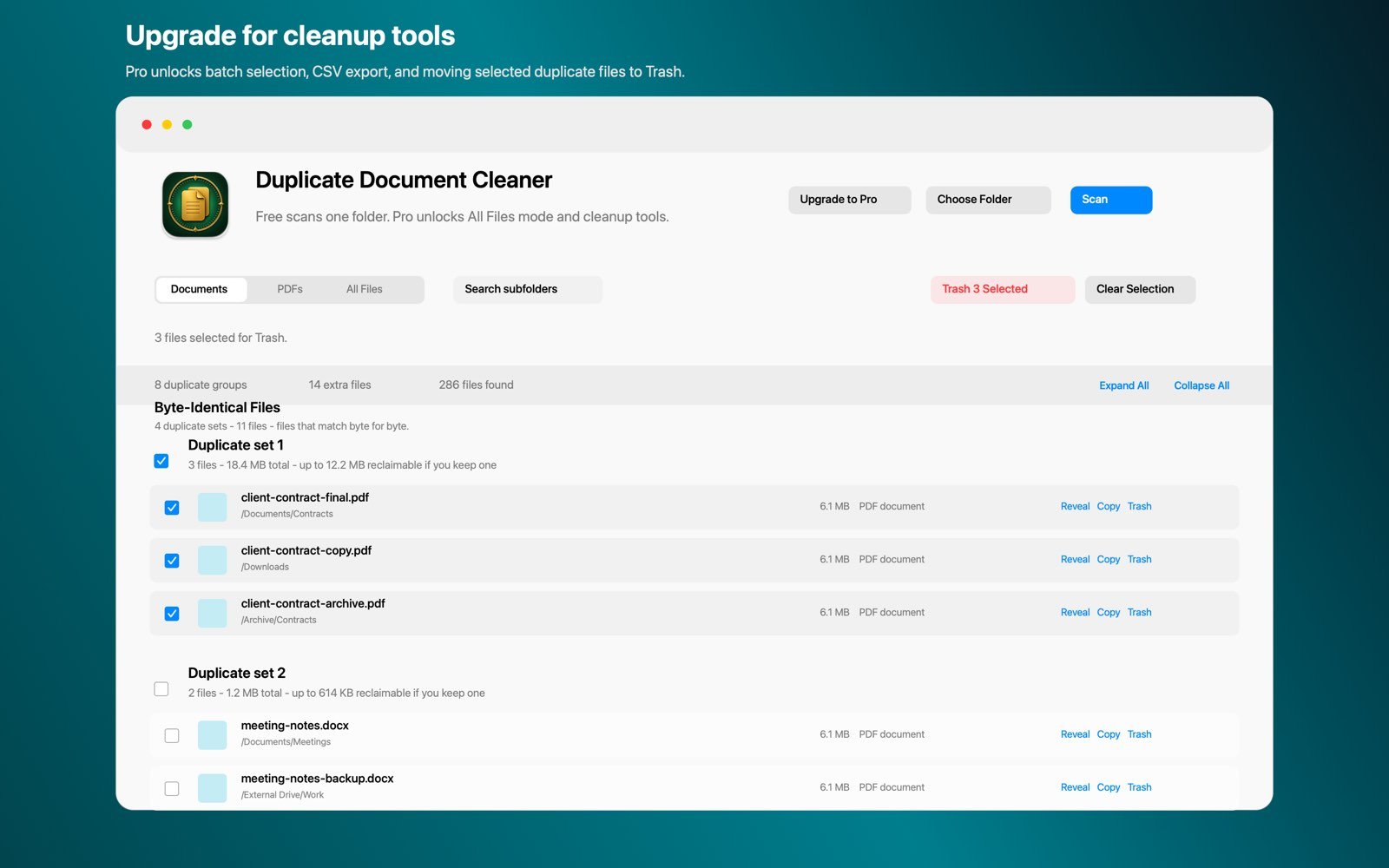
Select the copies, or whole groups at once with Pro, and move them to the macOS Trash. They sit there, fully recoverable, until you choose to empty it, and undo puts them straight back if you have second thoughts. Compare that with the Terminal route, where deletion is instant and final, and you can see why we think the Trash is not a detail. It is the difference between cleaning up and gambling.
Clean up your documents with certainty
Duplicate Document Cleaner matches documents and PDFs byte-for-byte, entirely on your Mac. Free to try, Pro is a one-time $9.99 purchase, no subscription.
Download on theMac App StoreWhich way should you pick?
- A few obvious “(1)” copies in one folder: Finder search is free and fine. Open each pair before deleting anything, because same name is not same file.
- You are comfortable in the Terminal and have a current backup: fdupes matches reliably, just remember it has no Trash and no undo.
- Documents that actually matter, spread across folders: use byte-identical matching with a review step and a Trash-only workflow. That is Duplicate Document Cleaner’s whole job.
Photo libraries have their own version of this problem, with copies that are not byte-identical at all. For that, see our guide on how to delete duplicate photos on Mac.
Frequently asked questions
How do I know it will not delete the wrong file?
Duplicate Document Cleaner only matches files that are byte-for-byte identical, so a match is a certainty, never a guess. Two different versions of a contract can never be flagged as duplicates, and you review every group before anything moves.
Can I get files back after cleaning up?
Yes. Removed files go to the macOS Trash, not straight to deletion, so you can recover them at any time until you empty the Trash. Nothing is ever deleted permanently by the app.
Does it work on PDFs and Word documents?
Yes. It is built for documents and PDFs, and it groups identical copies for review with file type and modification details, so you can see exactly what you are keeping before you clean up.
Are my documents uploaded anywhere?
No. Scanning happens entirely on your Mac. There are no accounts, no analytics, and no tracking, and your documents never leave your computer.