

Trying to connect an Android phone to a Mac and getting nothing when you plug it in? That is normal, not a fault. macOS has no built-in way to read an Android phone’s storage, so a plain USB cable usually just charges it. There are two ways that actually work in 2026: the cable route with the right mode and the right tool, and a wireless route that needs no app on the phone at all. Here are both, plus the fixes for when the cable refuses to cooperate.
Why your Mac doesn’t see your Android phone
An iPhone shows up in Finder because Apple built that support into macOS. Android phones share files over a protocol called MTP, and macOS does not speak it. So when you connect an Android phone to a Mac with a cable, the Mac sees a device that wants power, not a drive full of photos. To browse the files you either need a separate app that talks MTP, or a method that skips the cable entirely.
Google’s own help center covers the phone side of this in its guide to transferring files between your computer and Android device.
Way 1: connect an Android phone to a Mac with a USB cable
- Use a data cable. Many spare cables are charge-only and carry no data. The cable that came with your phone is the safest choice.
- Plug straight into the Mac. Hubs and dongles cause a surprising share of failed connections.
- Click Allow on the Mac. On Mac laptops with Apple silicon, macOS asks whether to allow a new accessory to connect. If you miss that prompt, the phone stays invisible.
- Unlock the phone and switch to File Transfer. Pull down the notification shade, tap the USB notification, and choose File Transfer or MTP. Android defaults to charging only.
- Open an MTP app on the Mac. Google’s old Android File Transfer tool is no longer maintained and often fails on current macOS. OpenMTP is a free, open source alternative that still works for many people.
When everything lines up, you can drag files across. When it doesn’t, our guide to Android File Transfer not working on Mac walks through every fix in order.
Way 2: connect wirelessly, with no app on the phone
If what you really want is your photos, videos and documents on the Mac, you can skip the cable, the modes and the MTP software. As long as both devices share the same Wi-Fi, the phone can send files straight to the Mac through its browser.
That is how DropBeam works, and it is the simplest way to connect an Android phone to a Mac for file transfers:
- Open DropBeam on the Mac and click Start Receiving. It shows a QR code and a short access code.
- Scan the QR code with the phone’s camera or Google Lens. A DropBeam page opens in the phone’s browser; nothing to install, nothing to sign into.
- Tap Choose Files, pick photos, videos or documents, and send.
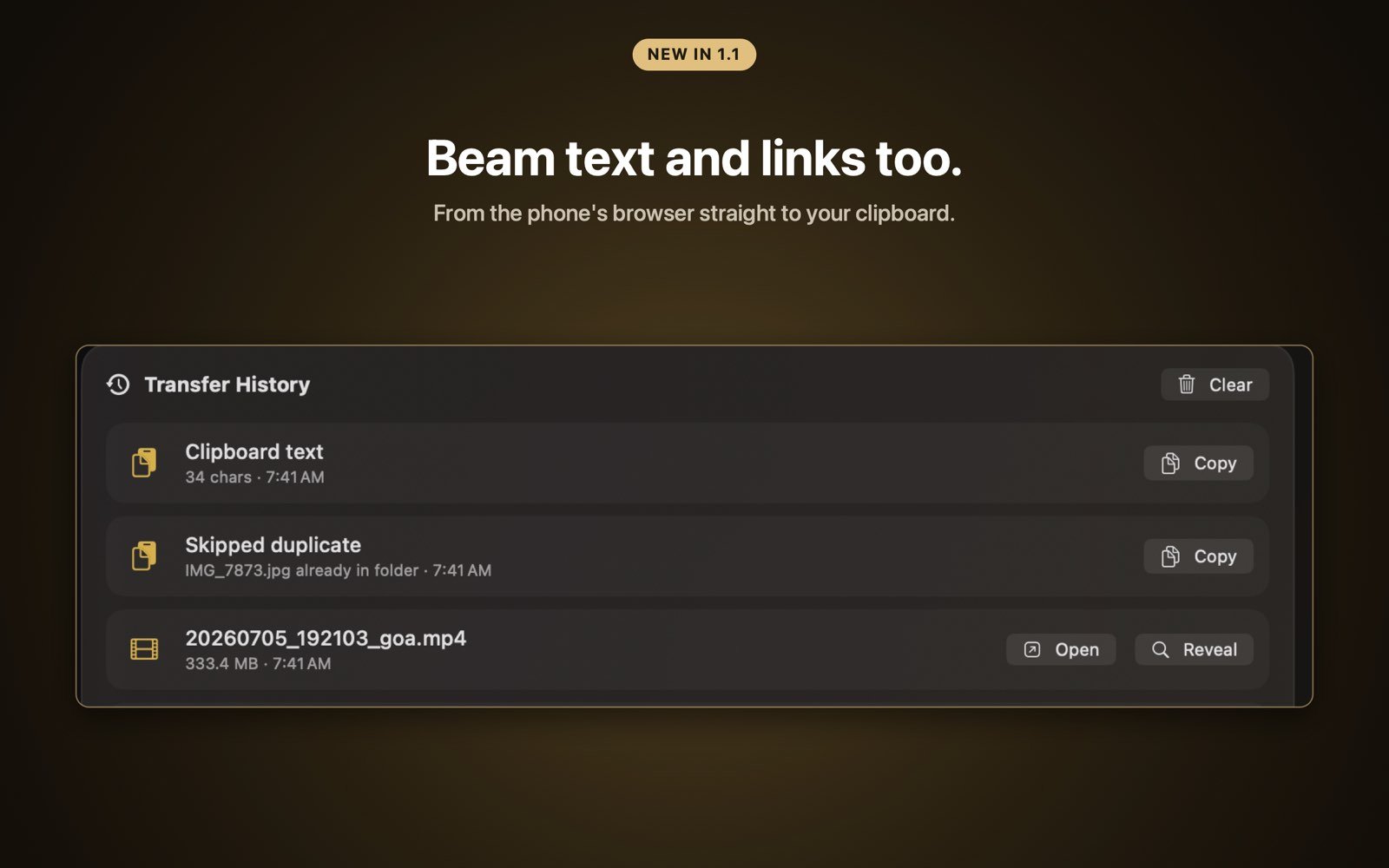
- Files land in your chosen folder on the Mac at full original quality. Click Open or Reveal to jump to them in Finder.
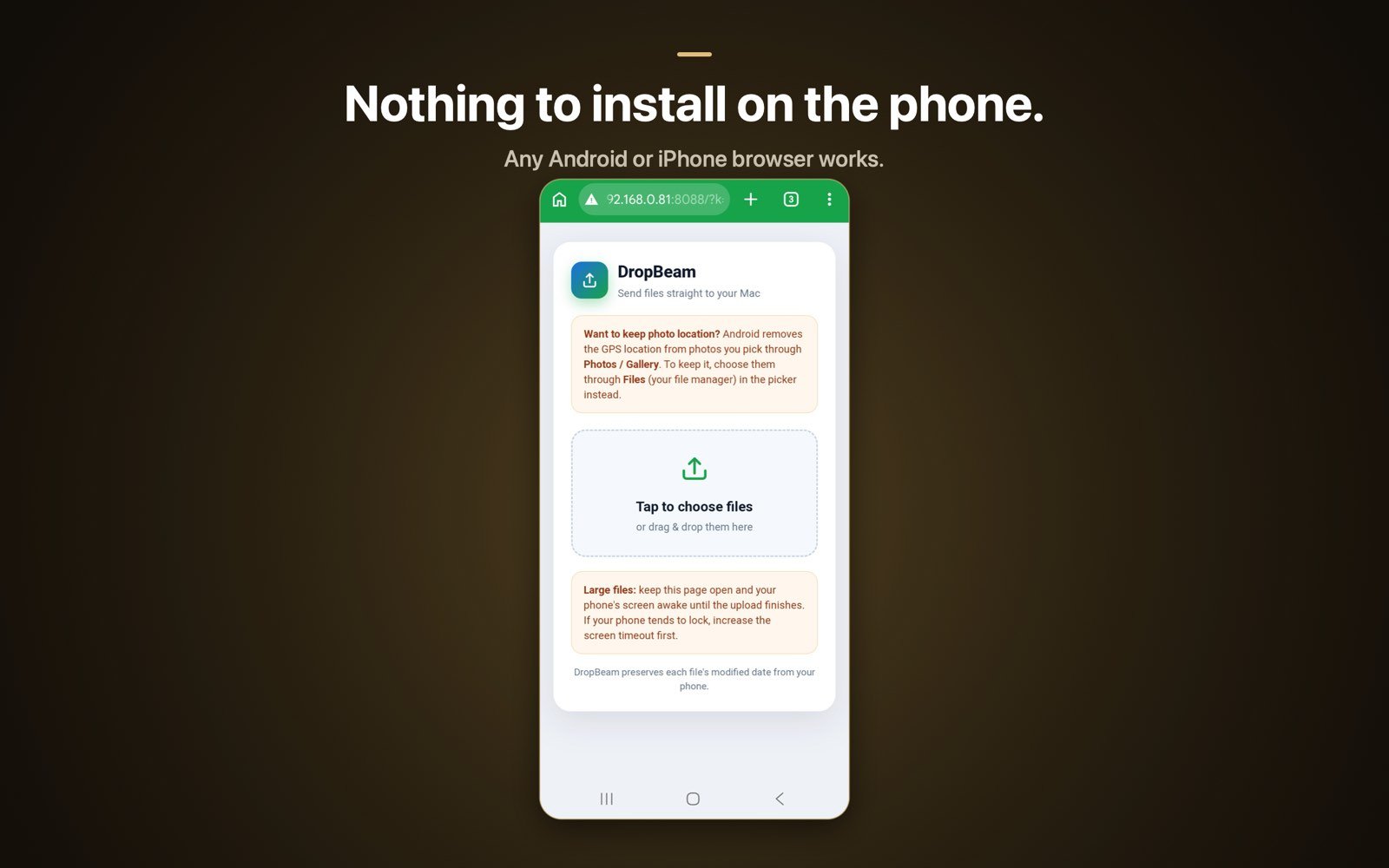
Files travel only over your own network. There is no account, no cloud relay and no file size limit, so a 4 GB video arrives as a 4 GB video. The access code means only the phone you scanned with can connect.
Cable vs wireless at a glance
- Setup: the cable needs a data cable, File Transfer mode and an MTP app; wireless needs the same Wi-Fi and a QR scan.
- Phone app: neither needs one. The cable route uses Android’s built-in MTP; DropBeam uses the phone’s browser.
- Browsing the phone: the cable route lets you explore the phone’s folders from the Mac. Wireless is built for sending the files you pick.
- Reliability: cable connections break with the wrong cable, hub or mode; wireless depends only on both devices sharing a network.
- Large files: both keep full quality. On big wireless uploads, keep the phone screen awake until the transfer finishes.
If the cable connection fails
- Swap to a different cable you know carries data.
- Unplug, unlock the phone, plug back in and watch for the Allow prompt on the Mac.
- Re-select File Transfer on the phone; it can reset to charging after you unplug.
- Restart both devices to clear a stuck USB connection.
- If you use a Samsung phone, note that Samsung’s Smart Switch for Mac is built for backing up and moving to a new Galaxy phone, not for everyday file browsing.
If you have worked through all of that and the Mac still sees nothing, switching to the wireless method is usually quicker than another round of troubleshooting.

Connect your phone in seconds, no cable
DropBeam moves photos, videos and files from any Android phone to your Mac over Wi-Fi. Free with unlimited transfers, nothing to install on the phone, no cloud. Pro is a one-time purchase, never a subscription.
Download on theMac App StoreFrequently asked questions
Why won’t my Mac recognize my Android phone?
macOS has no built-in support for Android’s MTP file transfer protocol, so a plain USB connection usually only charges the phone. You need File Transfer mode plus an MTP app, or a wireless method that avoids the cable.
Can I connect an Android phone to a Mac without installing an app on the phone?
Yes. With DropBeam the phone only uses its browser: scan the QR code shown on the Mac and upload from the page that opens. The cable route also needs no phone app, but it does need an MTP app on the Mac.
How do I connect an Android phone to a Mac wirelessly?
Put both devices on the same Wi-Fi, open DropBeam on the Mac, click Start Receiving, and scan the QR code with the phone. Files you pick on the phone land in a folder on the Mac at full quality.
Does this work on a MacBook Air, MacBook Pro or iMac?
Yes. Both methods work the same on every Mac. On Mac laptops with Apple silicon, remember to click Allow when macOS asks whether to let a new accessory connect.