

You are about to move photos from Android to iPhone, and here is the trap nobody warns you about: most of the obvious routes quietly recompress your pictures on the way. The photos arrive, the thumbnails look fine, and months later you zoom into a face at a wedding and find mush. New-iPhone season is exactly when this happens most, so before you send a single photo, here is what actually preserves your originals and what silently ruins them.
The silent recompression trap
A photo is just a file, and a file copied byte for byte cannot lose quality. Loss only happens when something along the route decides to re-encode your photo, usually to save bandwidth or storage, and usually without asking. The three big offenders:
Messaging apps. WhatsApp is the worst of them: it recompresses images aggressively and shreds video bitrate. People genuinely WhatsApp themselves a decade of memories and only discover the damage later. Google Photos in Storage saver mode. Google’s backup quality settings spell it out: Storage saver “slightly reduces” quality, which in practice means your backups are recompressed copies, and that is what a new phone downloads. Email. Attachment caps around 25 MB force most mail apps to offer a “reduce size” option, and one tap later your originals never left the phone.
The fix is simply to pick a route that copies files without touching them. There are more of those than you might think.
Four ways to move photos from Android to iPhone, compared
| Method | Quality | When it works | Needs |
|---|---|---|---|
| 1. Move to iOS | Full, originals | Only during initial iPhone setup | Both phones, patience, a still-empty iPhone |
| 2. Google Photos | Full only in Original quality mode | Anytime | Google account, storage quota, slow round trip |
| 3. Cable + computer two-step | Full, originals | Anytime | A computer, two cables, an evening |
| 4. Direct Wi-Fi transfer (Ferry) | Full, originals | Anytime, phone to phone | Ferry on the iPhone, a browser on the Android |
1. Move to iOS
Apple’s official migration app copies originals faithfully and pulls contacts and messages too. The limitation is timing: it only appears while a new iPhone is being set up for the first time. If your iPhone is already up and running, this door is closed unless you factory reset. We covered that whole situation in how to transfer photos after setup without a reset.
2. Google Photos
Works anytime and keeps full quality, but only if the Android phone backs up in Original quality mode, and only within your storage quota. A large camera roll can exceed the free 15 GB in one evening, and everything makes a slow round trip through Google’s servers, up from the Android and back down to the iPhone.
3. Cable and computer two-step
Copy from Android to a computer over USB, then from the computer to the iPhone. It preserves originals and needs no cloud, but it is genuinely tedious: two transfers, two cables, one abandoned Android File Transfer app on the Mac, and an import step at the end. It earns its place only when there is no Wi-Fi at all.
4. Direct Wi-Fi transfer with Ferry
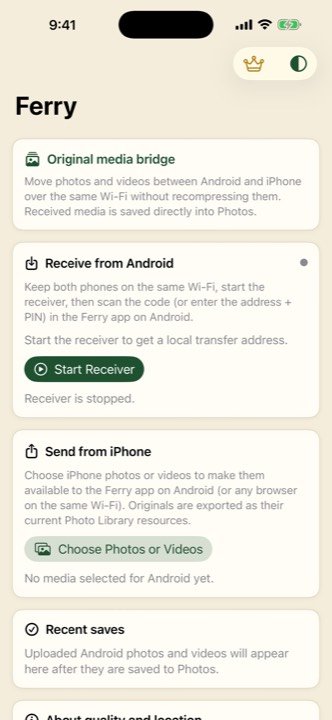
Ferry is an iPhone app that moves photo and video originals between Android and iPhone over your local Wi-Fi. The files are copied without decoding or recompressing, so resolution, quality and capture metadata survive, and videos keep their full size. No cables, no computer, no cloud, no accounts, and it works in both directions. The Android side just uses its browser, or the optional Ferry Android companion app.
The full-quality route in 4 steps
This is the simplest way to move photos from Android to iPhone with nothing lost: both phones on the same Wi-Fi, three minutes, originals intact.
1. Start the receiver on the iPhone
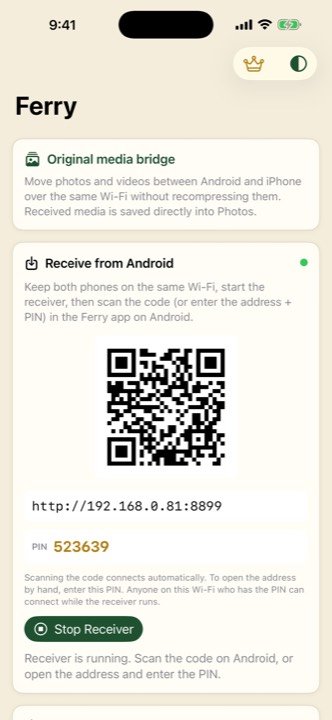
Open Ferry and tap Start Receiver. Ferry shows a QR code and a local address on your network. Nothing leaves that network during the transfer.
2. Scan the QR code with the Android phone
Point the Android camera at the code and tap the link. A transfer page opens in the Android browser, with nothing to install and nothing to sign in to.
3. Send the originals
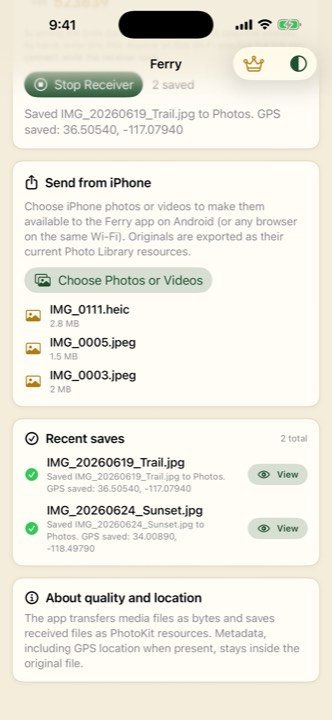
Pick your photos and videos on the Android page and send. Because the files travel across your own Wi-Fi rather than through a server, there is no size cap and no re-encoding. A 2 GB 4K video arrives as a 2 GB 4K video.
4. Check them in the iPhone Photos library
Ferry writes received files with PhotoKit, so everything appears straight in the Photos app, not in a folder you have to import from. Open one photo at full zoom and confirm it looks exactly as it did on the Android phone. It will, because it is the same file.

Switch phones without losing a pixel
Free on the App Store. Works with any Android phone.
Download on theApp StoreBefore you switch: a two-minute checklist
Whichever way you move photos from Android to iPhone, these four habits prevent nearly every horror story we hear about:
- Charge both phones. A big library takes a while, and a phone dying mid-transfer helps nobody.
- Put both phones on the same Wi-Fi. Home Wi-Fi is ideal. Skip public networks for anything personal.
- Transfer first, verify second. Open a handful of photos on the iPhone at full zoom and play your longest video to the end.
- Only then delete from Android. Keep the old phone intact until you have checked the new one. Thirty seconds of zooming beats discovering compression damage a year later.
Already set up the iPhone weeks ago and just discovered the photos never came across? That exact situation has its own guide: transfer photos from Android to iPhone after setup, no reset needed.
Frequently asked questions
What is the best way to move photos from Android to iPhone without losing quality?
Any route that copies the original files untouched. Move to iOS during setup, a cable plus computer two-step, and Ferry over local Wi-Fi all preserve originals. Ferry is the only one of the three that works at any time, with no computer and no cables.
Does WhatsApp reduce photo quality when I send pictures to myself?
Yes, heavily. WhatsApp recompresses images and videos to save bandwidth, so a sharp 12 MP photo can arrive at a fraction of its original resolution. Never move a photo library through a messaging app.
Do videos keep their full size with Ferry?
Yes. Ferry moves the original video file without decoding or recompressing it, so a 2 GB 4K video arrives as a 2 GB 4K video with its capture metadata intact.
When is it safe to delete the photos from my Android phone?
Only after checking them on the iPhone. Open a few transferred photos at full zoom and play a long video to the end. Once you are confident everything arrived intact, deleting from Android is safe.