

If your MacBook keeps warning you about storage, the fastest win is usually to remove duplicate photos on MacBook drives before you delete anything you actually care about. A MacBook Air or MacBook Pro has a fixed internal drive that cannot be upgraded later, so copies of the same shots hurt sooner than they would on a desktop. Here are three quick, safe ways to clear them, starting with the free tools already on your Mac.
First, see how much space photos are using
Before you start, find out what you are dealing with. Open the Apple menu, choose System Settings > General > Storage, and wait for the bar at the top to fill in. Hover over each colored section to see how much space Photos, Documents and other categories take. If photos and videos are a big slice, duplicates are almost certainly part of it.
Apple’s own guide to viewing and removing duplicate photos is a good companion to this step, and it is worth keeping open while you work through the first method below.
Where duplicates hide on a MacBook
Laptops collect copies in a predictable set of places, so it helps to know where to look:
- Double imports. Importing the same phone or camera twice, once with Image Capture and once with Photos, leaves two full copies.
- Downloads and the Desktop. Pictures saved from email, messages and the web land here and are rarely cleaned up.
- Offload drives. When space runs short, people copy photos to an external drive “for safety” and then copy them back later, doubling everything.
- Format twins. The same shot saved as both HEIC and JPEG, or recompressed by a messaging app, looks identical but is a separate file.
Way 1: merge duplicates in the Photos app
If your pictures live in the Photos app on macOS Ventura or later, open Photos and click Utilities > Duplicates in the sidebar. Review the sets, then press Command-A and click Merge Items to combine them all. Photos keeps the highest quality version, carries over captions, keywords and favorites, and moves the extras to Recently Deleted for about 30 days. When you are confident, empty Recently Deleted to get the space back.
This is the safest place to start because it is free and preserves your albums. We walk through it step by step in our guide to duplicate photos in the Photos app. Its one big limit: it never looks outside the Photos library.
Way 2: let iCloud Photos optimize storage
This does not remove duplicates, but on a small MacBook drive it pairs well with the other two steps. If you use iCloud Photos, open Photos > Settings > iCloud and choose Optimize Mac Storage. Your full-resolution originals stay in iCloud and the Mac keeps lighter versions, downloading originals when you open them. Remove duplicate photos on MacBook storage first, though, so you are not paying iCloud to store copies you do not want either.
Way 3: remove duplicate photos on MacBook folders and drives
To reach the copies outside the Photos app, you need a scan that compares the files themselves. Duplicate Media Cleaner checks any folders and external drives you choose for exact copies, look-alike images such as a JPEG and its HEIC twin, and similar resized or recompressed versions, with a match percentage you control.
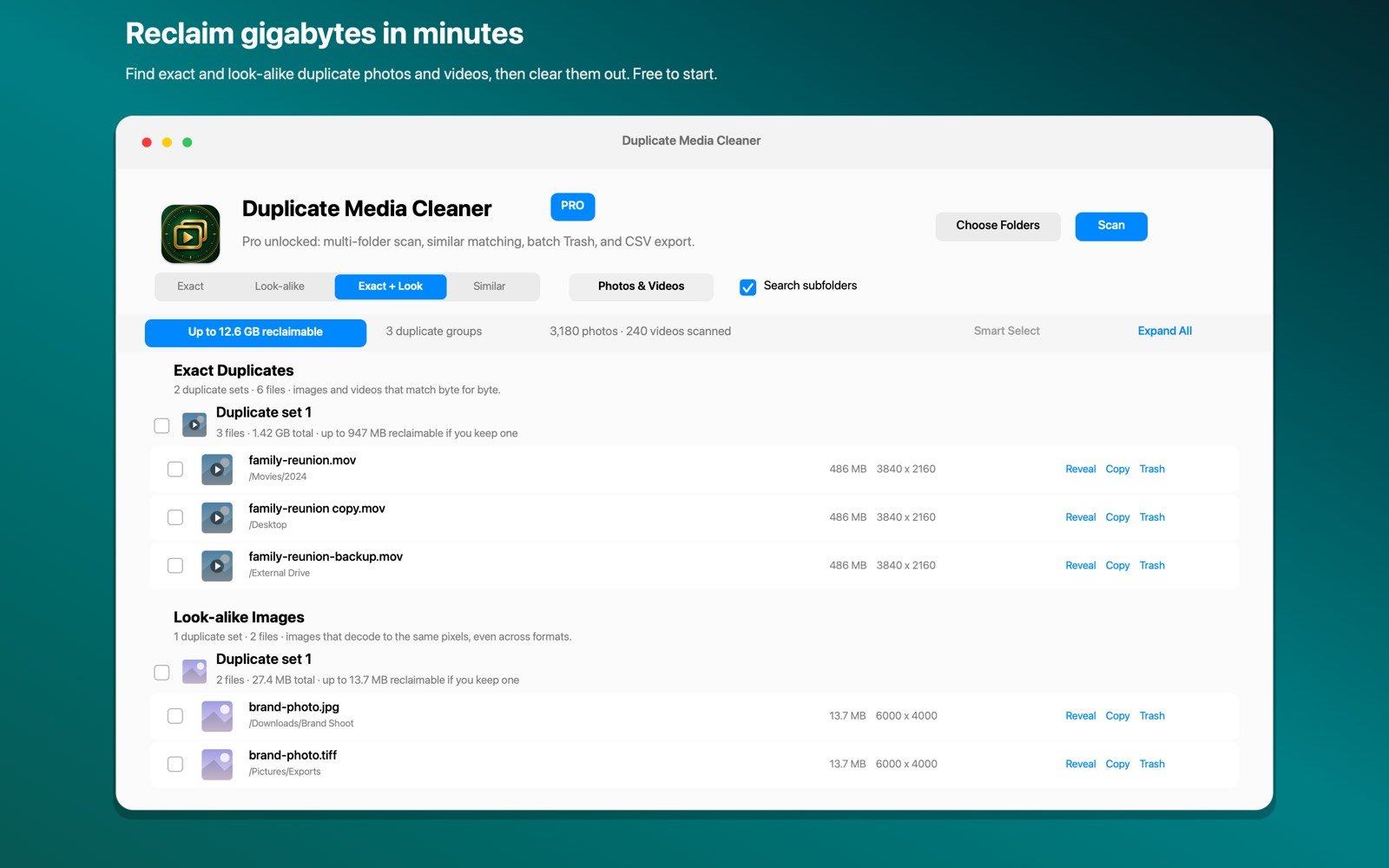
Smart Select picks the copy to keep in every group, newest, largest or oldest, and leaves similar groups for you to check. Removed files go to the macOS Trash with one-tap Undo, and the whole scan runs on your Mac, so nothing is uploaded.
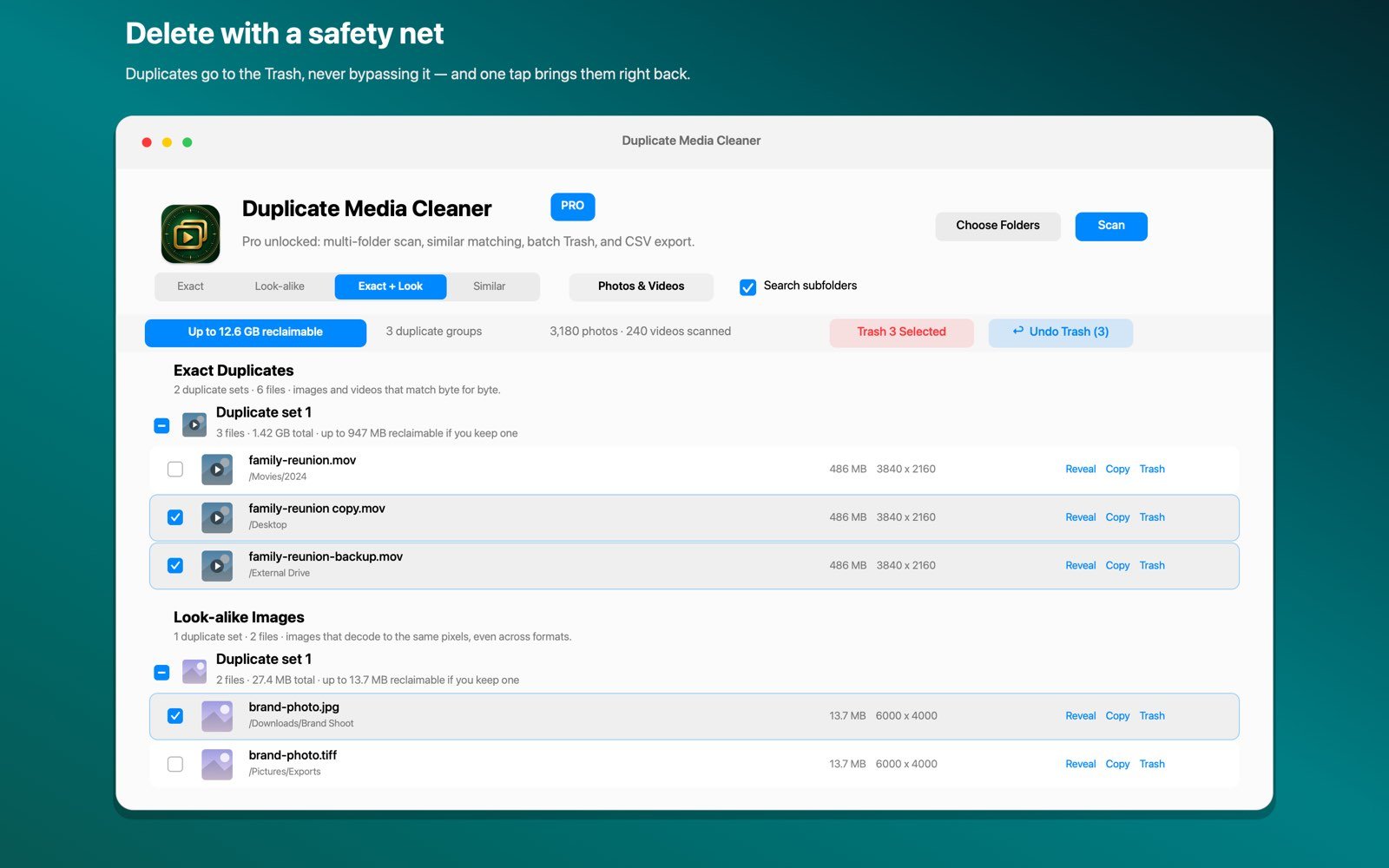
A good order of work on a MacBook: merge inside Photos first, scan your folders and drives second, then check System Settings > Storage again to see what you got back. For every method side by side, see how to delete duplicate photos on Mac.

Free up your MacBook, safely
Duplicate Media Cleaner finds exact, look-alike and similar copies of photos and videos across any folder or drive, entirely on your Mac. Free to try, Pro is a one-time $9.99 purchase, no subscription.
Download on theMac App StoreFrequently asked questions
How do I remove duplicate photos on MacBook Air or Pro?
The same way as on any Mac. Merge duplicates in the Photos app under Utilities > Duplicates, then scan Downloads, the Desktop and external drives with a tool like Duplicate Media Cleaner to catch the copies Photos never checks.
Will this free up much space on a MacBook?
Often yes, especially if you have duplicate videos or repeated imports. Because MacBook storage cannot be upgraded, clearing duplicates is one of the quickest ways to reclaim gigabytes without losing anything you want.
Is it safe to remove duplicate photos on MacBook with years of pictures?
Yes, if you use tools that move copies to Recently Deleted or the Trash instead of erasing them. Review each group first, and empty the Trash only after a day or two.
Does Optimize Mac Storage remove duplicates?
No. It keeps lighter versions on the Mac and full originals in iCloud. It saves space, but duplicates still exist in your library, so clear them first.