

If you want to find similar photos on Mac, a normal duplicate finder will let you down. It looks for identical files, and most of the clutter in a real photo library is not identical: the same picture resized for email, recompressed by a chat app, exported twice with a slightly different edit. Here is what “similar” really means, why the tools built into macOS miss it, and three easy ways to clean it up without losing the shot you actually want.
Similar vs duplicate: what’s the difference?
A duplicate is the same file twice. Every byte matches, so it is easy to detect and safe to remove. A similar photo is the same picture stored differently. It might be:
- Resized. A 12-megapixel original and the 2-megapixel copy you emailed.
- Recompressed. The version a messaging app saved, smaller and slightly softer.
- Re-encoded. A HEIC original and the JPEG your phone converted when you shared it.
- Lightly edited. The original next to an export with a filter or a small crop.
To your eye these are the same photo. To a computer comparing bytes, they are completely different files, which is why they survive most cleanups.
Why built-in tools miss similar photos
macOS gives you two free tools, and both are built for exact matches. Finder can sort by name or size, but a resized copy has a different size and often a different name. The Photos app has a Duplicates album, but it only checks pictures inside your Photos library and focuses on exact and near-exact copies. Neither one looks at what the picture actually shows.
That is the gap a visual comparison fills. Instead of comparing bytes, it builds a compact perceptual fingerprint of each image, a summary of its shapes and brightness, and then compares fingerprints. Two copies of the same shot produce nearly the same fingerprint even when their files share nothing.
Way 1: start with the Photos Duplicates album
If your pictures live in the Photos app on macOS Ventura or later, open Utilities > Duplicates in the sidebar and merge what it finds. Apple explains the feature in its guide to removing duplicate photos and videos on Mac. It is free, it keeps your albums intact, and it clears the easy cases first. We cover it step by step in our guide to duplicate photos in the Photos app.
Just know its limit: it will not look in Downloads, the Desktop or an external drive, and it will not pair a heavily resized copy with its original.
Way 2: compare by eye with Quick Look
For one small folder, your own eyes work. Open the folder in Finder, switch to icon view and drag the size slider up so thumbnails are large. Select the first image and press the Space bar to open Quick Look, then use the arrow keys to flip through. Similar shots sitting next to each other jump out quickly.
It costs nothing, but it does not scale. Across thousands of pictures in several folders, flipping through by hand takes hours, and it only works when similar photos happen to be near each other in the list.
Way 3: find similar photos on Mac with a visual scan
To find similar photos on Mac across every folder at once, use a scanner that compares the pictures themselves. Duplicate Photo+Video Cleaner has a Similar mode built on exactly that fingerprint idea. It groups photos and videos that look alike within a threshold you choose, catching copies that are resized, recompressed, re-encoded or lightly edited. Videos are compared using frames sampled across the clip.
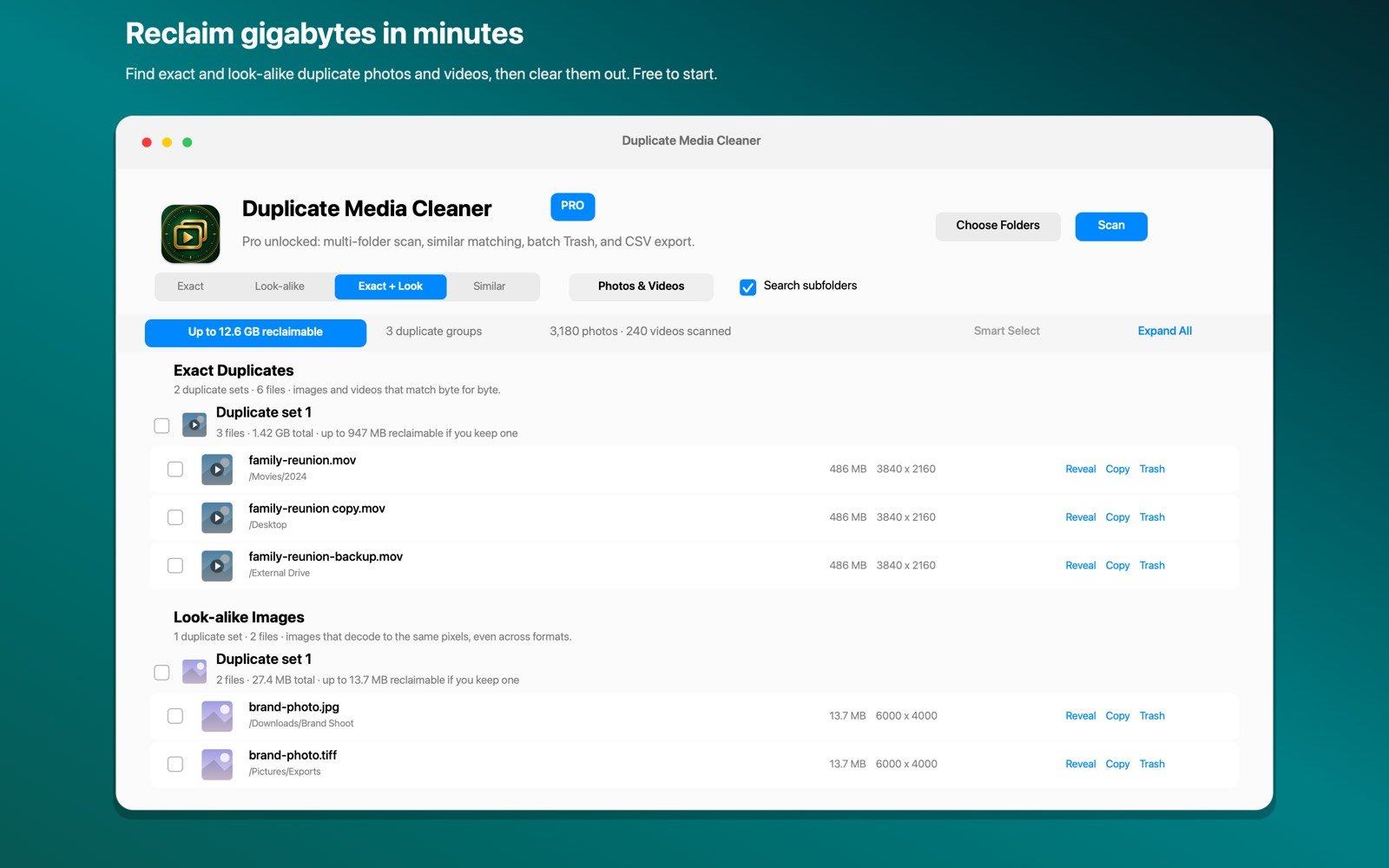
The threshold starts at 85 percent, and it is worth understanding what moving it does:
- Higher, around 90 percent and up: only very close copies match. Best for clearing resized and recompressed versions with almost no false matches.
- The default 85 percent: a good balance that also catches lightly edited exports.
- Lower: catches more, including near-identical shots like consecutive frames, but also more photos you may want to keep. Review these groups carefully.
Every group shows its match percentage, and similar groups are never auto-selected for removal. You decide each one. When you are ready, the copies you choose go to the macOS Trash, and one-tap Undo brings them back. The scan runs entirely on your Mac.
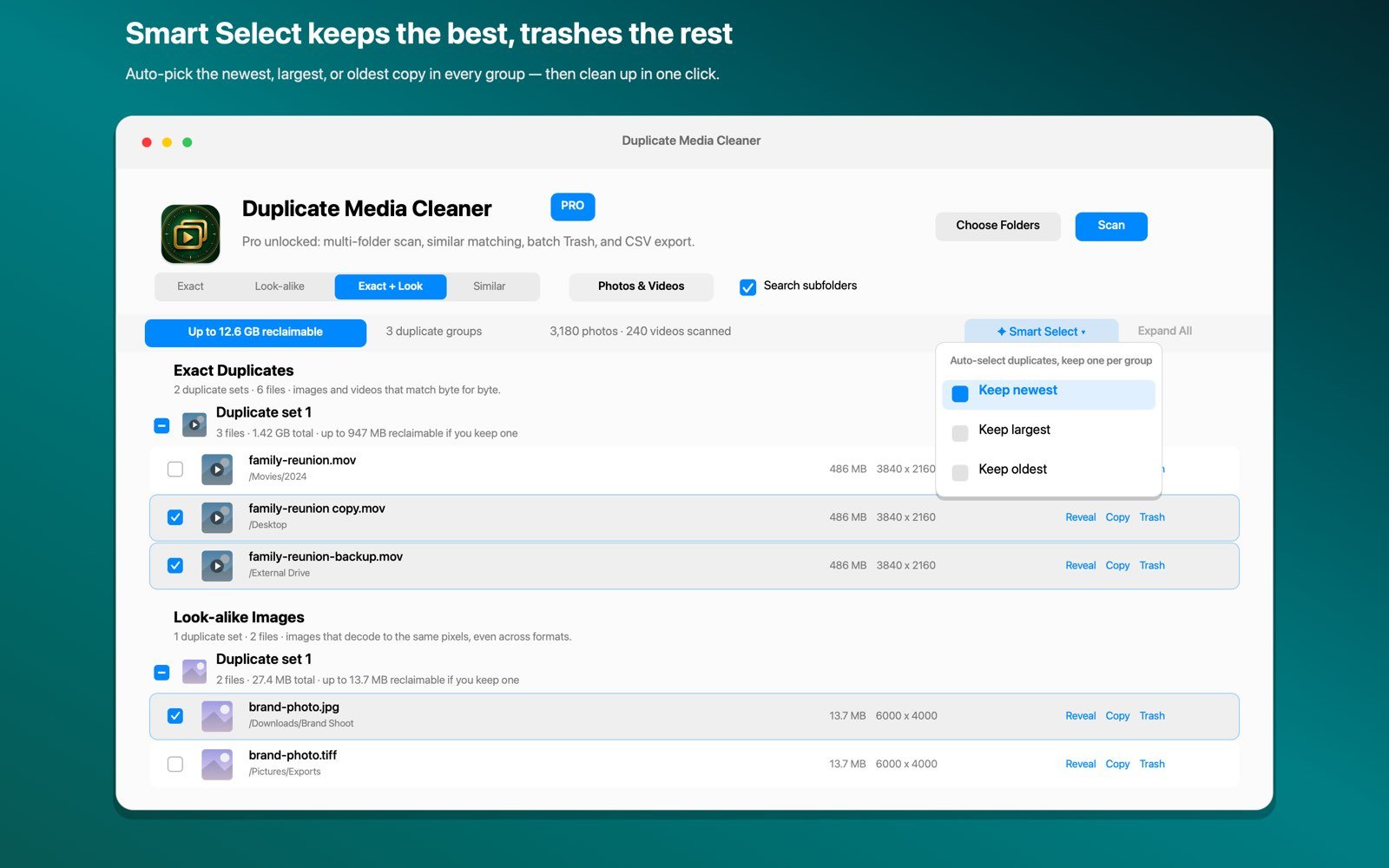
The free version scans one folder for exact duplicates. Similar matching, multi-folder scans, Smart Select and moving files to the Trash are part of the one-time Pro purchase.
How to choose the keeper
When you find similar photos on Mac, the one to keep is not always the newest. A few rules that hold up:
- Prefer the larger resolution. Select the file in Finder and press Command-I to see its dimensions. The bigger one is usually the original.
- Prefer the larger file within the same format. A small JPEG is often the compressed copy a chat app made.
- Keep the edit you like, not both. If one version has the crop or filter you chose, that is the keeper.
- Zoom in on faces. Recompression softens fine detail first, so eyes and hair show the difference fastest.
For exact duplicates, the order is simpler, and our main guide on how to delete duplicate photos on Mac walks through it.

Catch the copies other cleaners miss
Duplicate Photo+Video Cleaner finds exact, look-alike and similar photos and videos across any folder or drive, entirely on your Mac. Free to try, Pro is a one-time $9.99 purchase, no subscription.
Download on theMac App StoreFrequently asked questions
Can a Mac find similar photos on its own?
Only partly. The Photos Duplicates album catches exact and near-exact copies inside your Photos library. To find similar photos on Mac across folders and drives, including resized and recompressed copies, you need a tool that compares the pictures visually.
What is the difference between similar and duplicate photos?
A duplicate is the same file twice, byte for byte. A similar photo is the same picture stored differently: resized, recompressed, re-encoded or lightly edited. Duplicate finders that compare bytes cannot see similar photos.
Will similar photos be deleted automatically?
No. In Duplicate Photo+Video Cleaner, similar groups are always left for you to review, with their match percentage shown. Anything you remove goes to the macOS Trash, and Undo restores it.
Does it work for videos too?
Yes. Videos are compared using frames sampled across each clip, so a re-encoded or recompressed copy of a video can be grouped with the original.