

You want to free up iPhone storage, but every guide seems to start with the same painful advice: delete your photos. That feels backwards, because the photos are the whole reason storage matters. The good news is that a full iPhone is usually full of things you will never miss. Here is what Apple’s built-in tools genuinely fix, where they quietly stop, and how to clear gigabytes of waste while keeping every memory you actually care about.
Why “Storage Almost Full” always comes at the worst moment
Nobody discovers a full iPhone on a quiet Tuesday. It happens at a wedding, when the couple is mid-kiss and the Camera app replies with “Cannot Take Photo.” It happens on the first morning of a holiday, or the second your kid does something worth filming. Storage fills gradually, but it fails suddenly.
And when it does, iOS has one suggestion it repeats with remarkable confidence: buy more iCloud. That banner in Settings is not wrong, exactly. It is just not the only answer, and it is rarely the best one. Before renting space by the month, it is worth understanding what is actually eating your phone.
What Apple’s built-in tools can do (and the iCloud catch)
Credit where it is due: iOS ships with several honest ways to free up iPhone storage, and you should try them first. Open Settings, tap General, then iPhone Storage, and Apple will show you exactly what is using the space, with recommendations at the top. Apple documents all of this in its guide to managing storage on iPhone.
Offload unused apps
Offloading removes an app you have not touched in months but keeps its data, so reinstalling later picks up where you left off. It is safe, reversible, and worth switching on. Realistically it recovers a few gigabytes, because most apps are small compared to what is coming next.
Review large attachments in Messages
The same iPhone Storage screen can list the videos and GIFs buried in years of chat threads. Deleting the fifty largest attachments takes two minutes and costs you nothing you will miss. Again: helpful, but usually a dent rather than a fix.
iCloud Photos with Optimize Storage
This is Apple’s headline answer. Full-resolution photos move to iCloud and your phone keeps lightweight versions, downloading the originals when you open them. It works well, and if you already pay for iCloud+ it is worth enabling. But be clear about what it is: a rental, not a fix. The clutter is still there, you are now paying monthly to store it, and when your library outgrows your plan, the same warning comes back with a bigger price tag. Optimizing a library full of junk means paying to keep the junk.
The camera roll is the real weight, and most of it is waste
On almost every full iPhone, Photos is the heaviest category by far. Here is the part nobody says out loud: a surprising share of that weight is not memories. It is exact duplicates from cloud syncs and re-saves. It is fourteen burst shots of one toast at that wedding, of which you love exactly one. It is the blurry misfires that never got cleaned up, screenshots of parking spots and Wi-Fi passwords from 2023, and a handful of enormous videos you forgot you took.
None of that is precious. All of it is taking up room that your next thousand real photos need. Delete the waste and the photos you love get to stay, at full quality, on your phone, with no monthly fee attached. That is the whole trick. (Apple’s own Duplicates album handles one slice of this, and we cover it honestly in our guide to deleting duplicate photos on iPhone.)
How to free up iPhone storage in four steps
This is the routine we built GigaBack for. Everything below happens on your iPhone: no accounts, no cloud, and your photos never leave the device. Nothing is deleted without your review, and anything you remove stays recoverable for 30 days.
1. Scan your photo library on-device
Open GigaBack and let it scan. In a couple of minutes it sorts the waste into piles: exact and look-alike duplicates, similar and burst shots, blurry photos, old screenshots, and your largest videos ranked by size, so the biggest wins come first.
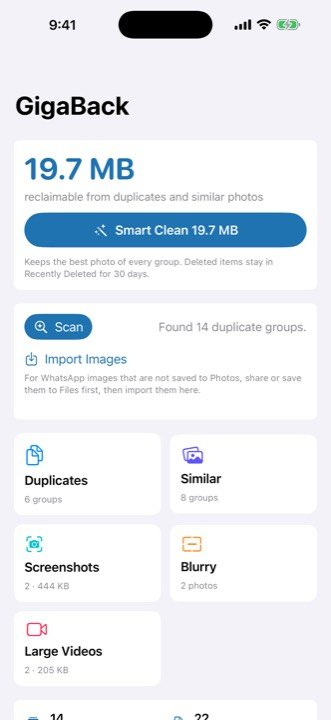
2. Review each group and keep the best shot
Work through the duplicate and similar groups. GigaBack suggests the sharpest photo in each set, but you make every call. This is the step that protects the memories: you are not deleting the wedding toast, you are keeping the one great frame of it and letting the other thirteen go.
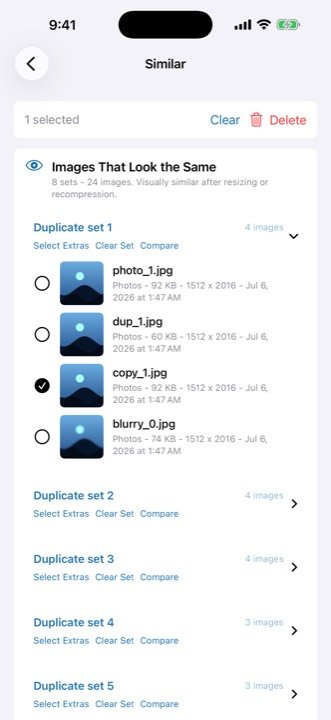
3. Swipe through old screenshots
Screenshots get their own treatment: swipe left to delete, right to keep. It is oddly satisfying, and most people clear hundreds in the time it takes to finish a coffee. Boarding passes from two summers ago do not need a forever home.
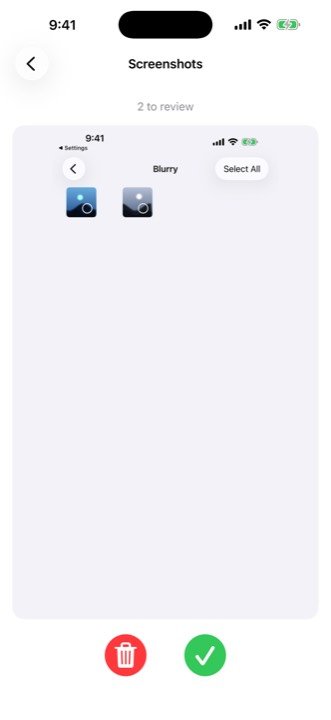
4. Reclaim the space in Recently Deleted
Everything you removed goes to the Recently Deleted album in Photos, where iOS keeps it for 30 days. That is your safety net: if you have second thoughts about anything, put it back with a tap. When you want the storage back right away, open Photos, go to Utilities, then Recently Deleted, and tap Delete All. Watch the free space jump in Settings.

Get your gigabytes back, keep every memory
GigaBack finds the duplicates, bursts, blurry shots and old screenshots wasting your iPhone storage, entirely on-device. You review everything, and deletions stay recoverable for 30 days. Free to try. GigaBack Pro unlocks everything, with a lifetime option available.
Download on theApp StoreFrequently asked questions
Can I free up iPhone storage without paying for iCloud?
Yes. iCloud’s Optimize Storage moves full-resolution photos to the cloud, but it is a monthly rental rather than a cleanup. Clearing duplicates, burst shots, blurry photos and old screenshots removes the waste itself, so the space you get back is yours for good.
Is it safe to delete photos with a cleanup app?
GigaBack never deletes anything on its own. You review every group, choose what to keep, and anything you remove goes to the Recently Deleted album in Photos, where iOS keeps it for 30 days. If you change your mind, you can put it back with a tap.
Why is my iPhone storage still full after deleting photos?
Deleted photos sit in Recently Deleted for up to 30 days before iOS clears them out. To reclaim the space immediately, open Photos, go to Utilities, then Recently Deleted, and tap Delete All.
Do my photos leave my iPhone during the scan?
No. GigaBack scans your photo library entirely on-device. There are no accounts and no cloud uploads, and your photos never leave your iPhone.