

You want to transfer photos from Android to Mac, and the cable is missing, broken, or charging-only. Or maybe you have simply had enough of Android File Transfer refusing to open. Good news: the cable was never required. Here are five cable-free ways to get your photos and videos onto your Mac, what each one costs you in quality and patience, and the two-minute route we recommend.
Why there is no AirDrop between Android and Mac
Apple devices share files between themselves with AirDrop, and Android phones share with each other using Quick Share. The two systems do not talk to each other, and neither company is in a hurry to fix that. So when you try to transfer photos from Android to Mac, you fall into the gap between two ecosystems.
For years the official answer was a USB cable and Google’s Android File Transfer app, which Google has quietly abandoned. If you have fought with it recently, we wrote up seven fixes for Android File Transfer not working. But the better answer for most people is to skip the cable entirely. Your phone and your Mac are usually already connected to the same thing: your Wi-Fi network.
The 5 cable-free ways compared
| Method | Quality | Speed | Needs |
|---|---|---|---|
| 1. Direct Wi-Fi transfer (DropBeam) | Full, originals | Fast, local network | Free Mac app, nothing on the phone |
| 2. Google Photos | Full only if you use your quota | Slow, up then down | Google account, patience, storage space |
| 3. Google Drive or Dropbox | Full | Slow, up then down | Account, manual upload and download |
| 4. Email to yourself | Often compressed | Fine for a few shots | Nothing, but ~25 MB per email |
| 5. Bluetooth | Full | Painfully slow | Patience of a saint |
1. Direct Wi-Fi transfer, the way we recommend
A small app on the Mac receives the photos straight from the phone’s browser over your own network. Nothing is uploaded to any cloud, quality is untouched, there is no size limit, and the phone needs no app at all. This is what DropBeam does, and we walk through it step by step below.
2. Google Photos
Upload from the phone, then download from photos.google.com on the Mac. It works, but you pay twice: once waiting for the round trip through Google’s servers, and once in quality if your phone backs up in Storage saver mode, which recompresses photos. Downloads also arrive as zip files that need unpacking, and your photos live on someone else’s computer along the way.
3. Google Drive or Dropbox
Same round trip as Google Photos, but manual: pick files on the phone, upload, wait, download on the Mac. Quality survives, your quota might not. Fine for a folder now and then; tedious for a camera roll.
4. Email or messaging apps
For two or three photos, emailing yourself still works. Beyond that you hit attachment caps around 25 MB, and messaging apps like WhatsApp compress images and videos hard enough to notice. Never move memories through a chat app if you care about keeping them sharp.
5. Bluetooth
Macs and Android phones can technically pair and exchange files, and people who have tried it rarely try twice. A single phone video can take the better part of an hour. It exists; that is the kindest thing we can say.
The fastest way: transfer photos from Android to Mac over Wi-Fi in 4 steps
This uses DropBeam, our free Mac app. Unlimited transfers, full quality, and the phone side is just a browser.
1. Start receiving on the Mac
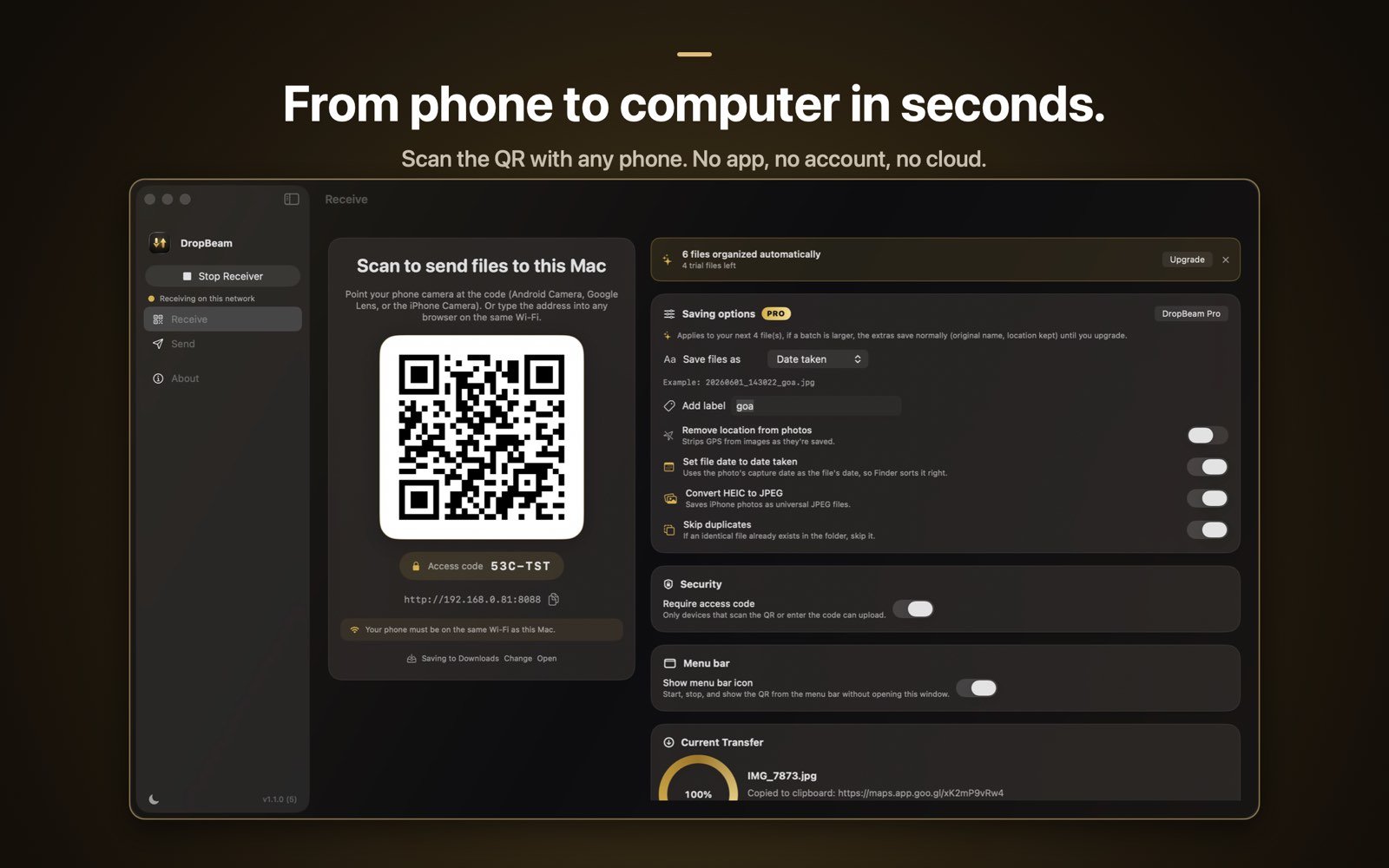
Open DropBeam and click Start Receiving. It opens a private connection on your Wi-Fi and shows a QR code with a short access code, so only your devices can connect.
2. Scan the code with the Android phone
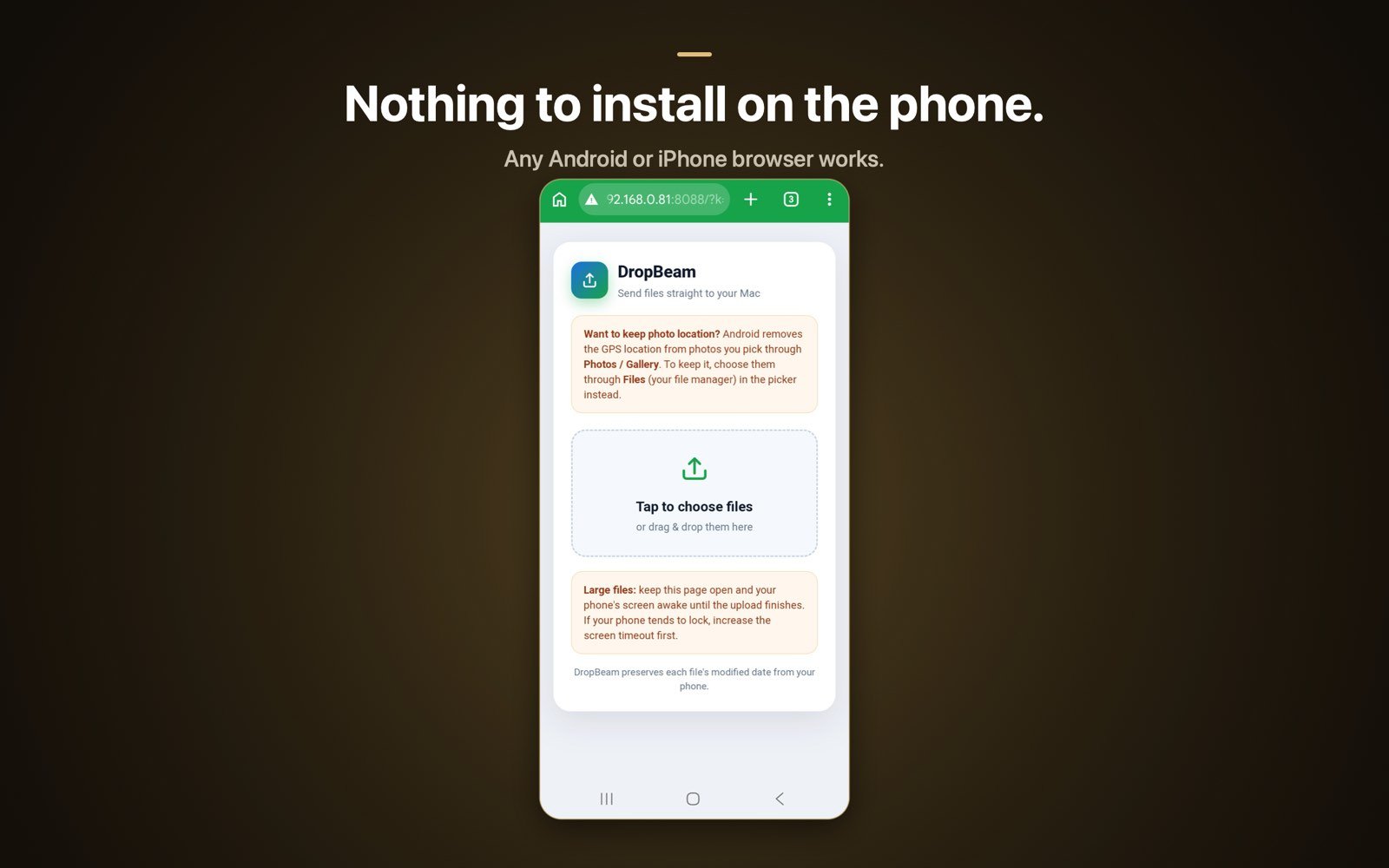
Point the phone’s camera (or Google Lens) at the QR code and tap the link. A DropBeam upload page opens in the phone’s browser. There is nothing to install and nothing to sign into.
3. Pick the photos to send
Tap Choose Files, select your photos and videos, and send. Whole batches are fine. One tip: if you want to keep GPS location data in the photos, pick them through the Files option in Android’s picker rather than Photos, because Android strips location from photos shared via the gallery picker.
4. Find them on the Mac
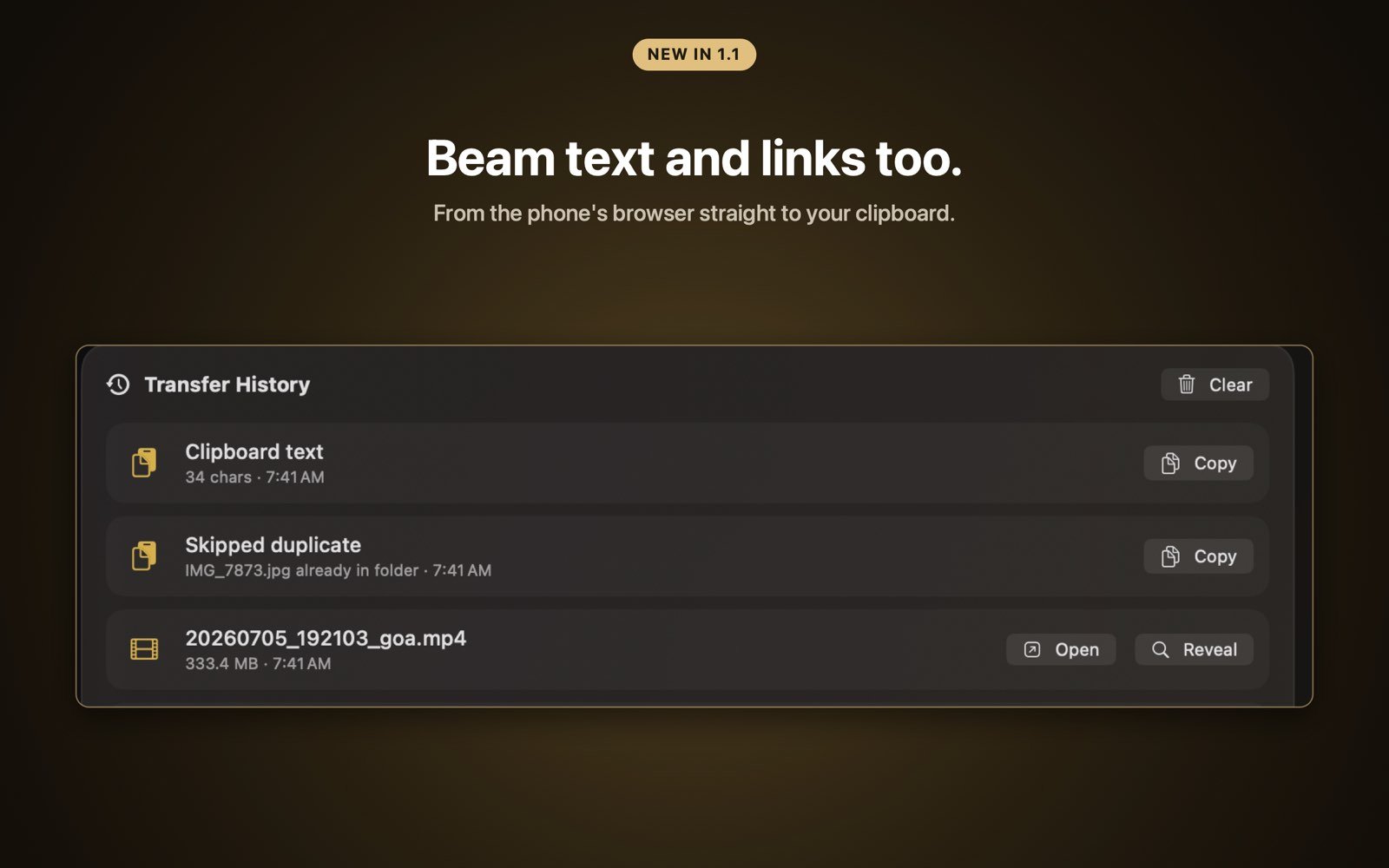
The transfer runs over your local network, so it is quick even for big batches. Every photo lands in the folder you chose at full original quality, and DropBeam can rename them by date taken, convert HEIC to JPEG, and skip duplicates as they arrive if you want.

Your photos, on your Mac, in two minutes
DropBeam is free with unlimited transfers. No phone app, no account, no cloud, no size limits. Pro is a one-time purchase, never a subscription.
Download on theMac App StoreWhich way should you pick?
- Moving photos regularly, or a big batch once: direct Wi-Fi transfer. Full quality, no waiting on uploads, nothing leaves your network.
- You already pay for Google One and back everything up in original quality: Google Photos is acceptable, just budget time for the round trip and the zip downloads.
- Two or three photos, right now, no setup: email yourself and move on with your day.
- Bluetooth: only if the Wi-Fi is down and the memory is precious.
Whichever you choose, check one photo on the Mac at full zoom before deleting anything from the phone. Thirty seconds of checking beats discovering compression damage a year later.
Frequently asked questions
Can I transfer photos from Android to Mac wirelessly for free?
Yes. DropBeam transfers unlimited photos and videos over your own Wi-Fi for free, with nothing to install on the phone. Cloud services like Google Photos also work for free up to your storage quota, though they route your photos through their servers.
Will my photos lose quality when I transfer them wirelessly?
Not with a direct Wi-Fi transfer: files arrive byte-for-byte identical, at full resolution with all metadata. Cloud and messaging routes can recompress: Google Photos in Storage saver mode reduces quality, and messaging apps compress heavily.
Do I need to install an app on my Android phone?
No. With DropBeam the phone only uses its browser: scan the QR code the Mac shows, pick your photos, and they upload straight to the Mac over the local network.
What about large videos?
Direct Wi-Fi transfer has no size limit, so a 4 GB video arrives as a 4 GB video. Email usually caps attachments around 25 MB, and messaging apps compress video heavily, so those routes only suit small files.