

HEIC and JPG duplicates are one of the most common kinds of clutter on a Mac, and one of the hardest to spot. You end up with IMG_4521.HEIC and IMG_4521.JPG side by side: the same photo, stored twice, in two formats. Most duplicate finders walk straight past them because the files share almost nothing at the byte level. Here is why they happen, how to stop new ones appearing, and three easy ways to clear the ones you already have.
Why HEIC and JPG duplicates happen
iPhones save photos as HEIC by default. It is a modern image format that keeps high quality at roughly half the size of a JPEG. The trouble starts when a photo leaves the phone. To stay compatible with older apps, websites and Windows PCs, Apple devices often convert HEIC to JPEG on the way out:
- Transferring to a computer. With the iPhone’s transfer setting on Automatic, photos can arrive as JPEG.
- Exporting from Photos. A normal export from the Photos app on Mac creates a JPEG copy.
- Sharing and syncing. Many apps and services convert to JPEG when you send or upload a photo.
Do any of those twice, once through a route that keeps HEIC and once through one that converts, and you have both versions on your Mac. Apple explains the format behaviour in its guide to using HEIF or HEVC media on Apple devices.
Why most duplicate finders miss them
A typical duplicate finder compares files byte by byte. A HEIC and the JPEG made from it are completely different files: different format, different size, different data. Even comparing the decoded pixels does not work, because converting to JPEG changes the image very slightly. To a byte or pixel comparison, they are two unrelated photos.
What they do share is how they look. That is why HEIC and JPG duplicates need a visual comparison, one that asks “do these pictures look the same?” rather than “are these files the same?”
Way 1: spot pairs in Finder
For a single folder, Finder can get you surprisingly far, because converted copies usually keep the original name. Open the folder, switch to list view, and sort by Name. Pairs like IMG_4521.HEIC and IMG_4521.JPG will sit next to each other. Add the Kind column (right-click the column header) to see the format at a glance, then select a JPEG and press the Space bar to confirm it matches before you remove it.
The catch: this only works when the names match and both files are in the same folder. Renamed exports and copies spread across Downloads, the Desktop and old backups slip through.
Way 2: check the Photos Duplicates album
If both versions were imported into the Photos app, open Utilities > Duplicates and review what it found. Apple covers the feature in its guide to removing duplicate photos and videos on Mac, and we walk through it in our guide to duplicate photos in the Photos app. It only checks your Photos library, though, and loose files in folders are never part of its scan.
Way 3: find HEIC and JPG duplicates with a visual scan
To clear HEIC and JPG duplicates across every folder at once, you need a scanner that compares what the pictures look like. Duplicate Photo+Video Cleaner has three matching levels, and it is worth knowing which one does this job:
- Exact finds byte-identical copies. It will not pair a HEIC with its JPEG.
- Look-alike finds files with identical pixels, such as a photo with its metadata edited. It will not pair them either, because JPEG conversion changes the pixels slightly.
- Similar compares the pictures visually within a match percentage you set. This is the level that catches HEIC and JPG duplicates.
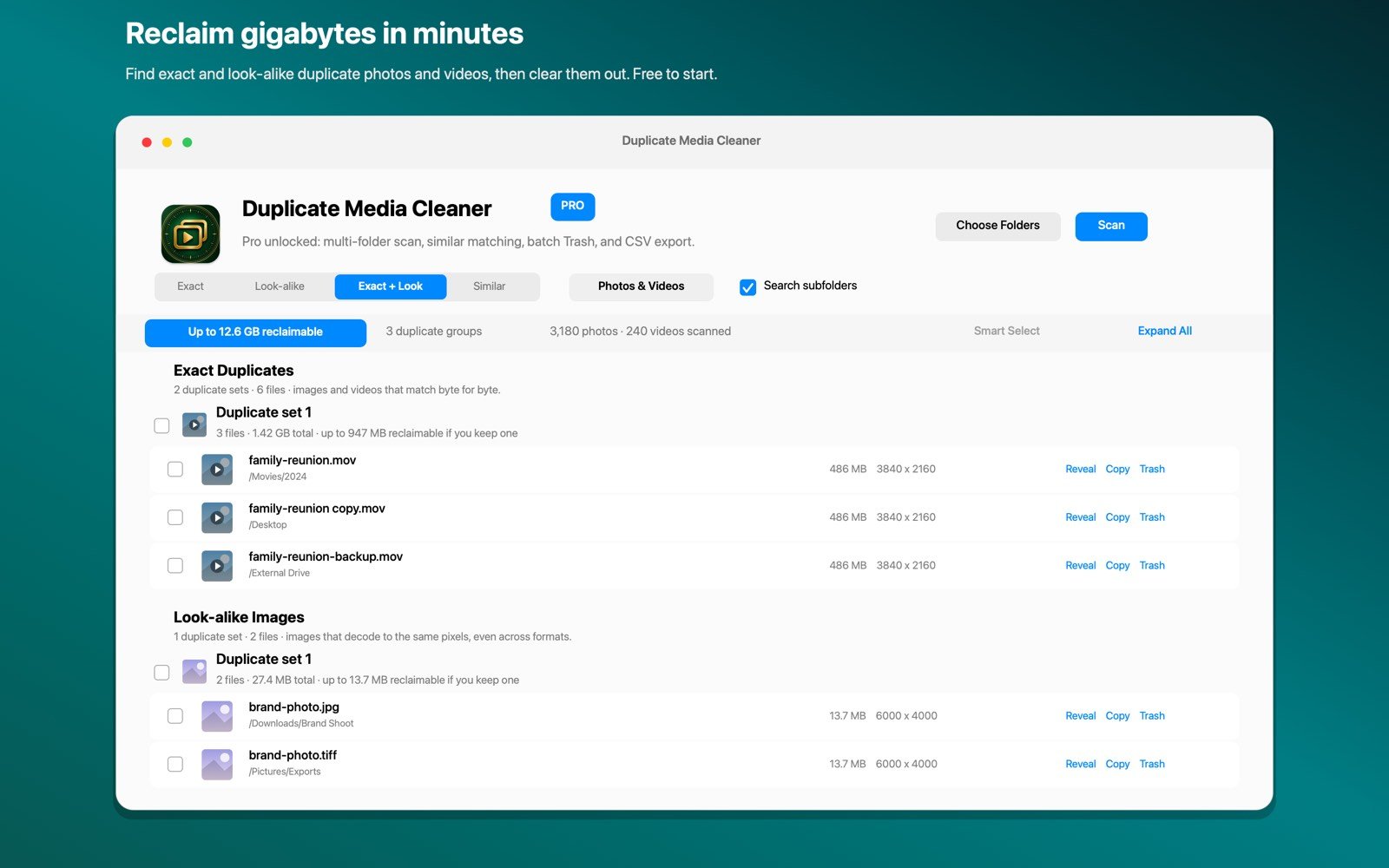
Point it at Downloads, the Desktop, your Pictures folder and any external drive, choose Similar, and scan. A JPEG converted from a HEIC looks almost identical to the original, so these pairs typically show a very high match percentage. Similar groups are never selected for removal automatically; you review each one, and anything you remove goes to the macOS Trash with one-tap Undo. Everything runs on your Mac.
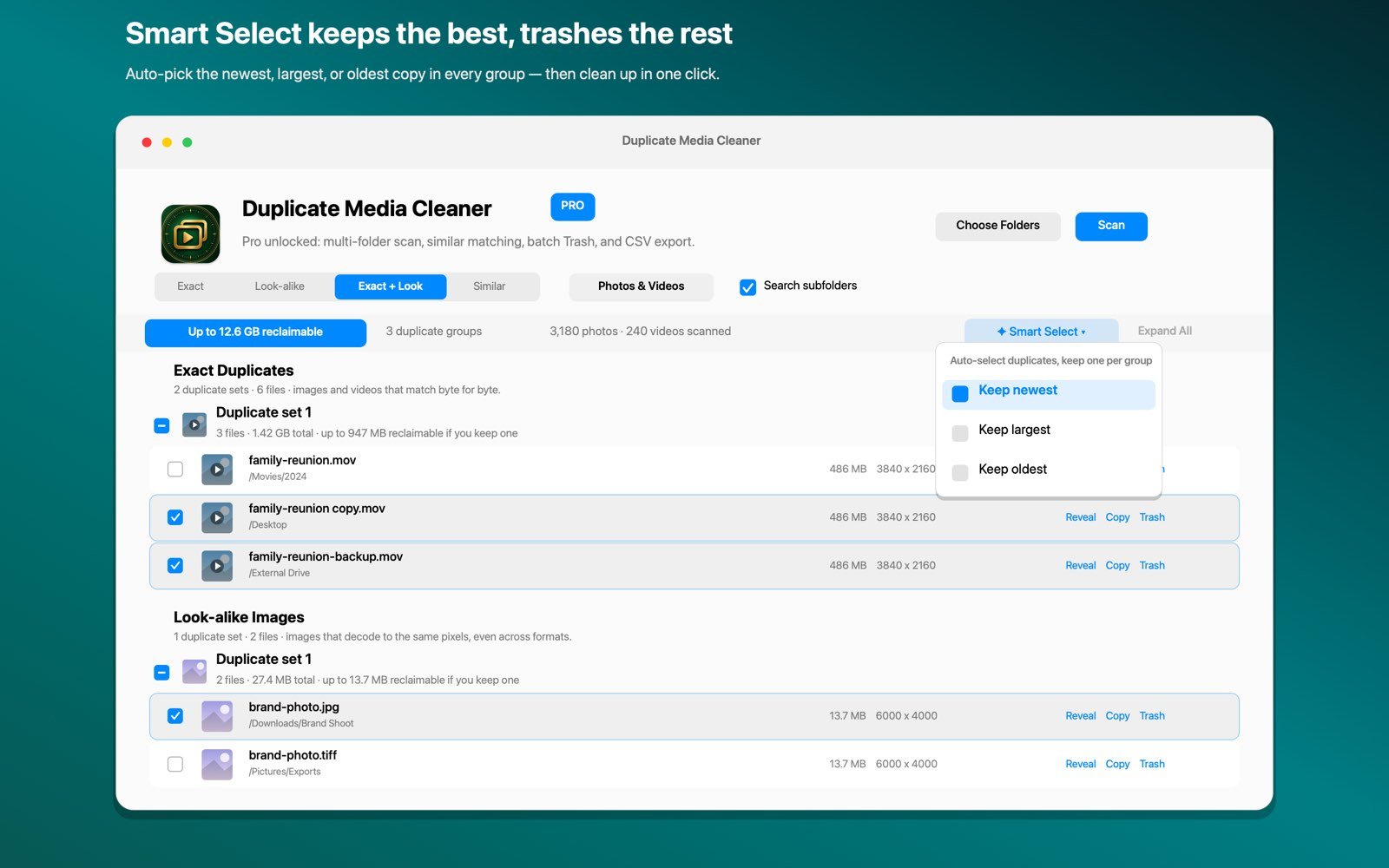
Similar matching is part of the one-time Pro purchase; the free version scans one folder for exact duplicates.
Which one should you keep?
- Keep the HEIC in your photo library. It is usually the original from the camera, and it stores the same quality in less space. Every modern Mac and iPhone opens it natively.
- Keep a JPEG only where compatibility matters. If a folder exists to share with Windows users or upload to an older website, the JPEG may be the one that belongs there.
- Never keep both by accident. One copy of each photo in your library, plus whatever compatibility copies you deliberately make, is the goal.
If you edited one version and not the other, keep the edited one regardless of format.
How to stop new duplicates
- On your iPhone: go to Settings > Photos and, under Transfer to Mac or PC, choose Keep Originals so photos arrive as HEIC instead of being converted.
- When exporting from Photos on Mac: use File > Export > Export Unmodified Original when you want the original HEIC rather than a new JPEG.
- Pick one import route. Importing the same photos once through Photos and once by copying files is the most common source of HEIC and JPG duplicates.
For every other kind of duplicate, see our main guide on how to delete duplicate photos on Mac.

Clear the HEIC and JPG pairs for good
Duplicate Photo+Video Cleaner finds exact, look-alike and similar photos and videos across any folder or drive, entirely on your Mac. Free to try, Pro is a one-time $9.99 purchase, no subscription.
Download on theMac App StoreFrequently asked questions
Why do I have HEIC and JPG duplicates on my Mac?
iPhones shoot HEIC, but transfers, exports and sharing often convert photos to JPEG for compatibility. If the same photo reaches your Mac through two routes, you get one copy in each format.
Why doesn’t my duplicate finder detect HEIC and JPG duplicates?
Because the files are genuinely different: different format, size and data, and JPEG conversion even changes the pixels slightly. Only a visual comparison, like Similar matching, can pair them.
Should I delete the HEIC or the JPG?
For your photo library, keep the HEIC: it is usually the camera original and uses less space. Keep a JPEG only where you need compatibility, such as files you share with Windows users.
How do I stop my iPhone creating JPG copies?
In Settings > Photos, set Transfer to Mac or PC to Keep Originals, and on the Mac use Export Unmodified Original when exporting from Photos.