

To transfer videos from Android to Mac without losing quality, you have to dodge two traps: file size and silent compression. Photos are forgiving; videos are not. A minute of 4K footage can run to hundreds of megabytes, and many of the usual shortcuts shrink it on the way across without telling you. Here are four ways that work, what each one does to your video, and the simplest method if you want the original file, untouched, in a folder on your Mac.
Why videos are harder to move than photos
Three things make video the hard case:
- Size. Modern phones record 4K at high bitrates, so a single holiday clip can be larger than a thousand photos. Anything with a file size limit breaks first.
- Compression. Many apps quietly re-encode video to save data. The result plays fine on a phone screen and looks soft and blocky on a laptop.
- Interrupted transfers. The bigger the file, the more likely a loose cable, a sleeping phone or a dropped connection cuts it off halfway.
So the question is not just how to get the file across, but how to get the original across.
Way 1: USB cable
Android phones share files over a protocol called MTP, which macOS does not support on its own. Plug in with a data cable, unlock the phone, set the USB mode to File Transfer, and use an MTP app on the Mac to copy the files from the phone’s DCIM folder. Google’s help center describes the phone side in its guide to transferring files between a computer and an Android device.
A cable keeps full quality, but large videos expose its weaknesses: transfers that stall, apps that freeze on big folders, and Google’s old Android File Transfer tool, which is no longer maintained. Our step-by-step guide on how to connect an Android phone to a Mac covers the setup, and this troubleshooting guide covers the usual failures.
Way 2: cloud storage
Uploading to a cloud service from the phone and downloading on the Mac works with no cable, and for a short clip it is fine. For real video it has two costs. First, the file travels twice, up and then down, so a few gigabytes can take a long time on an ordinary connection. Second, some backup settings save videos at reduced quality to save space. If you go this route, check that the service is set to keep originals, and that you have the cloud storage to spare.
Way 3: email or messaging (and why to avoid it)
Sending a video to yourself feels quick, but it is the worst option for quality. Email attachments are typically capped around 25 MB, which rules out most phone videos entirely, and messaging apps usually compress video before sending. You end up with a small, soft copy on your Mac and the impression that the transfer worked. Keep this for clips where quality genuinely does not matter.
Way 4: transfer videos from Android to Mac over Wi-Fi
If what you want is the original video file on your Mac, the cleanest route skips the cable, the cloud and the compression. As long as the phone and the Mac share a Wi-Fi network, the phone can send files straight to the Mac. That is how DropBeam works:
- Open DropBeam on the Mac and click Start Receiving. It shows a QR code with a short access code.
- Scan the code with the phone’s camera. A DropBeam page opens in the phone’s browser. Nothing to install on the phone, no account.
- Tap Choose Files and pick your videos. If you want to keep location data, pick them through the phone’s Files app rather than the gallery, since Android strips location from items chosen through the gallery picker.
- Keep the phone’s screen on while large files upload; browsers can pause uploads when the screen sleeps.
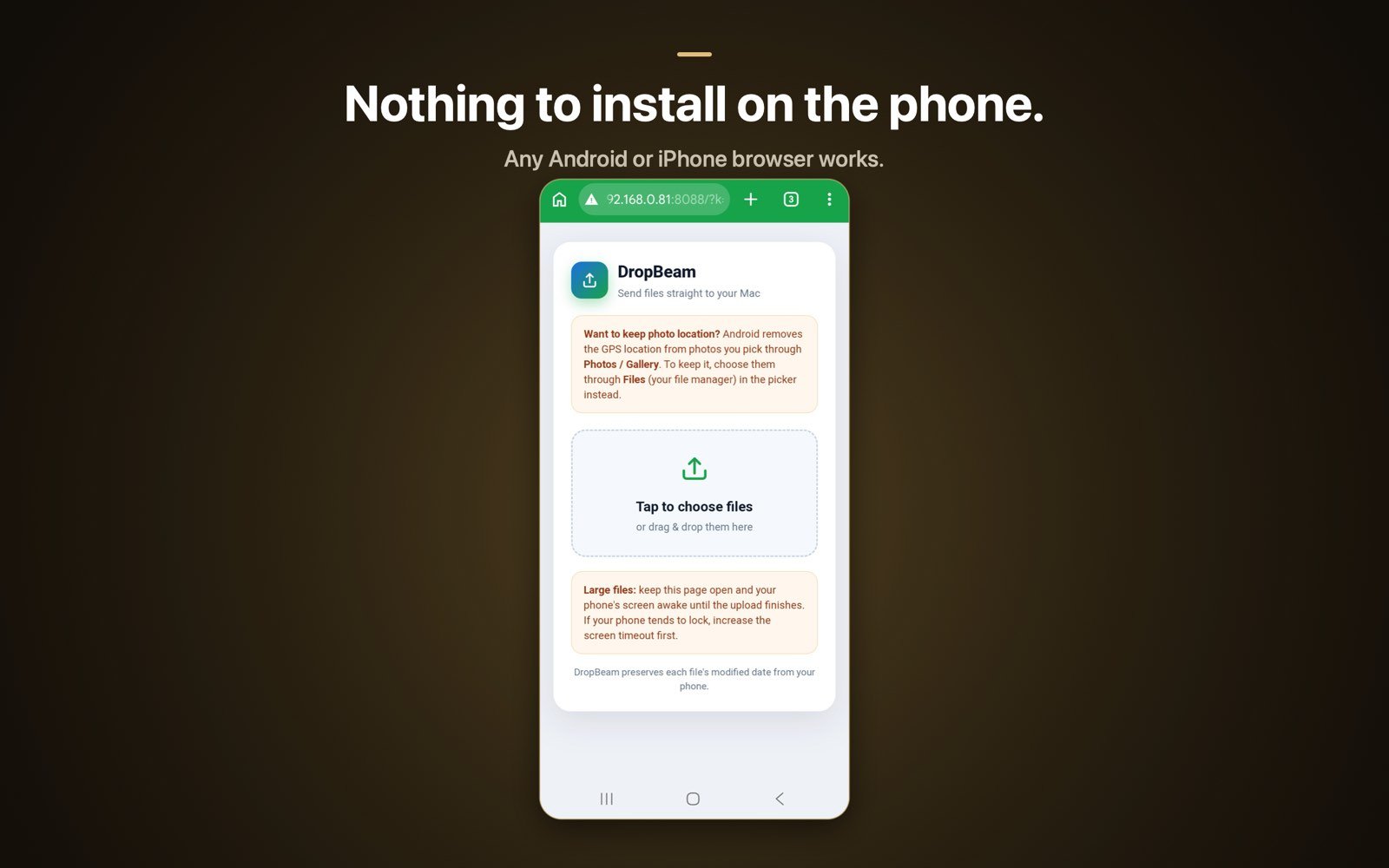
There is no file size limit and no cloud relay, so a 4 GB clip arrives as a 4 GB clip, byte for byte, in the folder you chose. Transfers stay on your own network, and the access code means only the phone you scanned with can send.
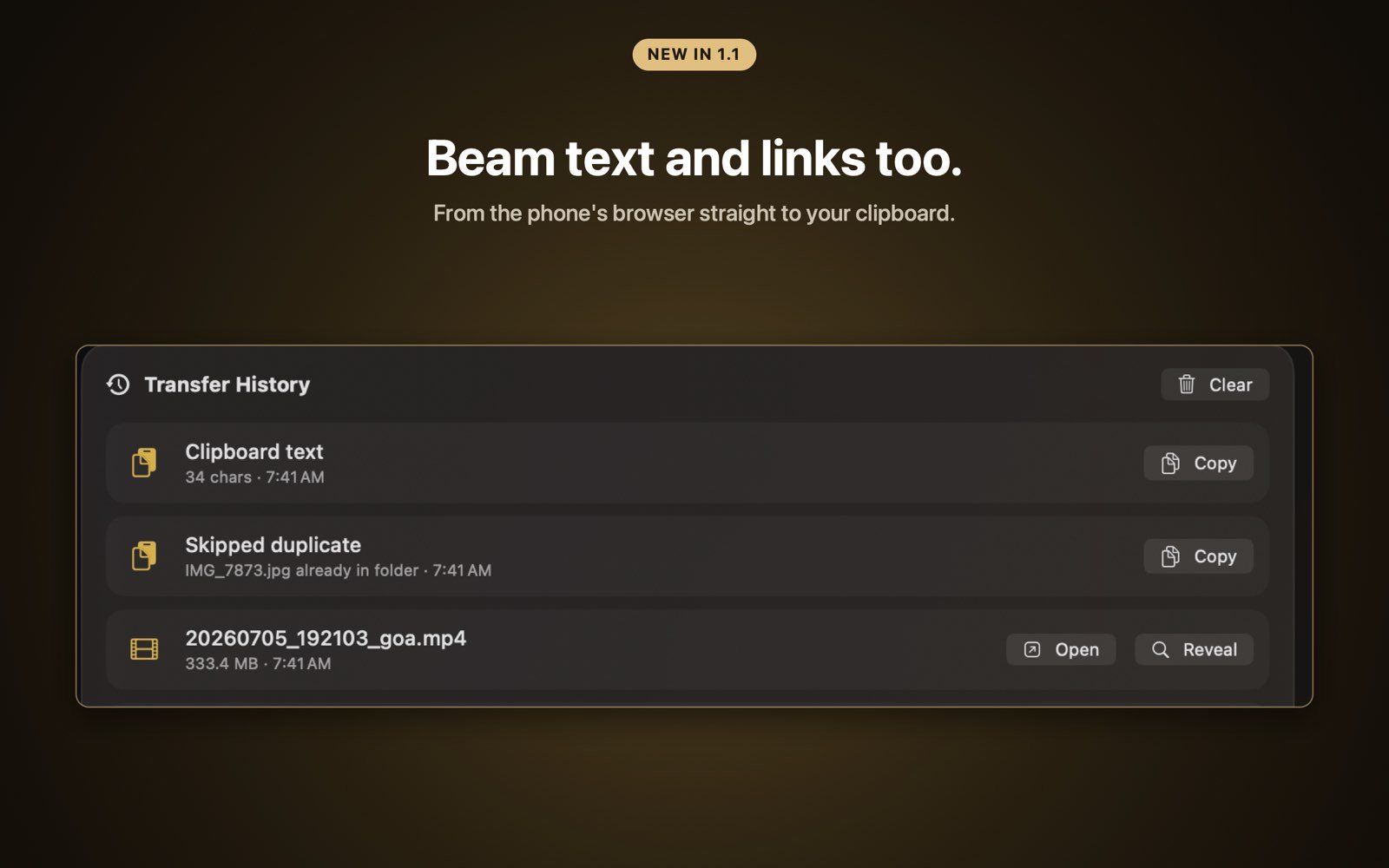
Transfers are free and unlimited. A one-time Pro purchase adds extras such as renaming files on save and skipping files you have already received, which helps when you transfer videos from Android to Mac in several sessions.
How to check you got the original
Whichever method you use to transfer videos from Android to Mac, a ten-second check tells you whether the video survived intact:
- Compare sizes. On the phone, note the file size in the file manager. On the Mac, select the file and press Command-I. They should match.
- Check the resolution. In the same Get Info window, open More Info to see the dimensions. A 4K clip should read 3840 by 2160, not 1280 by 720.
- Watch a fast scene. Compression shows up first in motion and in dark areas. If those look blocky, you received a compressed copy.
For photos rather than videos, see our guide on how to transfer photos from Android to Mac.

Move full-size videos, no cable
DropBeam moves videos, photos and files from any phone to your Mac over Wi-Fi. Free with unlimited transfers, no size limit, nothing to install on the phone. Pro is a one-time purchase, never a subscription.
Download on theMac App StoreFrequently asked questions
How do I transfer videos from Android to Mac without losing quality?
Use a method that copies the original file: a USB cable with an MTP app, or a Wi-Fi tool like DropBeam that has no size limit. Avoid email and messaging apps, which cap file sizes and compress video.
Why do my Android videos look blurry on my Mac?
You most likely received a compressed copy. Messaging apps and some cloud backup settings re-encode video to save space. Check the resolution and file size in Get Info against the original on the phone.
Can I transfer large 4K videos wirelessly?
Yes. DropBeam has no file size limit, so multi-gigabyte clips transfer at full quality. Keep the phone’s screen on during large uploads so the browser does not pause the transfer.
Do I need an app on my Android phone?
No. With DropBeam the phone only uses its browser. The cable route also needs no phone app, but it does need an MTP app on the Mac.